Check what a camera can see before leaving it connected
Distinguish application permissions, physical field of view and always-available camera devices.
Check the frame from the camera's point of view
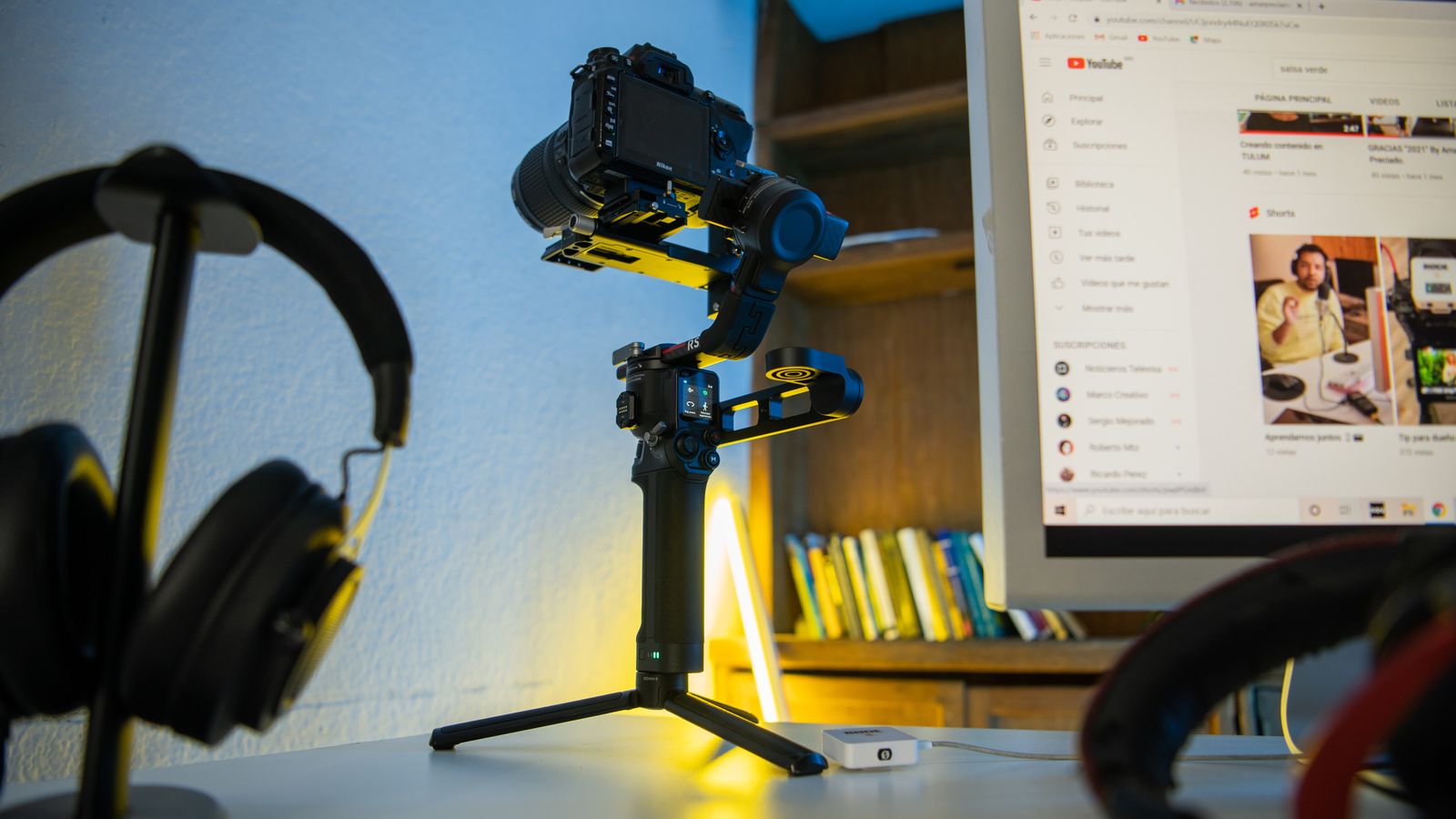
A camera at the top of a display may see a bit more of the room than you expect. An external plan for a pair of seats may use a wider angle than the laptop camera. Start a local preview in the app you intend to use and sit where you normally work. Watch the parts at both edges of the frame while you reach for a glass or lean away. The people in a call may see the door you open, the edge of a wall calendar or the screen you thought was behind the lens.
Try a harmless stand-in for material you do not want in view. Put an ordinary sheet of paper with large text on the side of the desk. Check when it is readable and when it falls outside the frame. Look at windows, mirrors and glossy cabinet doors as well as objects the camera points toward directly. A brightly lit screen behind you can be visible in a reflection even when it isn't physically in front of the camera. Try the same preview in daytime and at night, when the difference between room light and the screen makes reflections more obvious.
The field of view shown in a preview may depend on the app's own cropping. If a meeting tiles participants into squares, it could show less at the edges than a recording shows. Auto-framing or movement tracking can change the visible area when someone else enters. Preview the behavior in an agreed call with test material. Put private papers where they won't come into view even if the camera adjusts, or use a more suitable fixed position for work that requires a consistent frame.
Find the video input that will actually turn on
A laptop and a dock can make several cameras appear under similar names. A meeting app might remember the last plugged-in camera or fall back to the built-in one when the external camera is unavailable. Open its video settings and look at the name and preview together. Move a finger in front of the intended lens without touching it. A change in the preview gives you a quick check of which hardware is in use.
Consider what changes when someone connects that same computer to a work screen. A monitor with a built-in camera may appear only through one cable path. Moving the computer or closing the lid can change which lens is aimed at the room. Run the preview on the exact configuration you plan to use. If a system supports multiple profiles, select the intended profile before opening a meeting window, because the app may remember different settings. A simple note on the monitor with the input name can help on a shared desk.
Check for software that presents an alternate video source, such as a tool that changes backgrounds or combines multiple inputs. Use it only when you know what it includes in the frame. A saved scene could contain screen content that no longer belongs in the call. Turn on the necessary view with ordinary practice content and check what changes when you enter or leave a meeting. Use the direct camera input if your intended task does not require the additional layer.
Review access where you granted it
The operating system may have a list of programs allowed to use the camera. A browser may also maintain a list of websites authorized to use that input. A meeting you joined from a browser can be affected by two decisions: whether the browser may reach the camera and whether the site may ask to use it in that browser. Check both if you are trying to understand an unexpectedly available input. A work-managed device may have restrictions applied centrally. Use your organization's approved flow to address one you cannot change.
Separate live access from recordings somebody already made. Removing a browser grant changes later access in that browser, subject to the browser's behavior. It does not erase a call recording or revoke access to a recording someone shared through a different service. If you need to manage those copies, review the meeting service's permissions for that recording. If the meeting belongs to another organization, use its process rather than assuming the desktop camera control can affect the saved copy.
If you keep the camera for one occasional task, consider letting that task request it only when needed where supported. Test that an invitation you use normally still lets you preview and choose the input, then restore the permission behavior that suits your work. Check recently installed web apps and more than one browser profile if both are involved in calls. A tidy permissions list should make it easy to explain why each source needs what it has.
Choose a physical control that fits the equipment
An external webcam attached to one cable can be disconnected between uses if you prefer a clear physical boundary. Check where that cable goes before moving it. A dock cable that also carries an active disk or display is a different thing from the short lead of a single webcam. Disconnect only the intended device so you don't interrupt a file transfer or call. Provide enough slack to do it without pulling on the monitor or catching the cord under a stand.
Some devices have a built-in shutter or switch. Check the maker's description to find out what it affects. A lens shutter can cover the camera while the microphone remains usable. A hardware camera switch may behave differently from a visual cover. If the system includes an infrared or face sign-in sensor, the shutter or cover can affect it too. Try the result with your usual sign-in while you have an alternative available. Confirm the observable effect using a preview rather than relying on the appearance of an icon alone.
Watch the thickness of any added cover on a closing laptop. Some models leave very little space between the display and keyboard. A cover the manufacturer does not support can interfere with closing or damage the screen. Prefer built-in controls or products the device maker approves when you need a physical block. A small movement of the camera to face a blank wall may be another option for a separate webcam, but that still leaves the device connected and should suit the reason you want to move it.
Work through a shared-room example
Imagine two people using a kitchen desk. They have a wide camera for a regular call. The room behind the chair looks unremarkable except for a dark cabinet. At night, a phone or monitor facing the cabinet can be visible in its reflection. The people also move the camera to show a document on the desk from time to time. Neither position seems problematic when considered only from the chair.
Start a preview with ordinary house lighting, put a test document on the desk and move between the two usual camera positions. Check which inputs the app offers and name the one you plan to use. Move the background screen or arrange its position before asking a background filter to hide the reflection. If a filter blurs the center but briefly shows detail during movement, choose the physical arrangement in any higher-sensitivity meeting. Put the intended document in a clean area so unrelated mail does not move into the view.
Next, check both the browser site and the app used for calls. Remove an old site allowance that no longer has a job. For routine meetings keep the input your household can use consistently. Close the preview and close the camera shutter, or disconnect that particular webcam if appropriate for the setup. Do a second test later with another person in the actual room and another harmless example. Both people should be able to tell which view is available without reading the full settings list.
Check the ordinary signs before a real meeting
Before a call with an unfamiliar app, take the time to use its real preview. Identify the video and sound sources separately. Look at the edges of the view, any reflections and the material that could be readable if you move. When the call ends, verify that it ended and close any follow-up preview or recording tool you no longer need. Use the physical control you selected if that is part of your routine.
A short recheck is worthwhile after you add a dock, move a desk or change the lighting in the room. The new device can make the earlier choice less useful even if all settings appear the same. Keep the physical and software checks small enough that you can finish them on a busy day. Finding the right camera, checking the visible area, and keeping the intended boundary after the call are three practical choices you can demonstrate yourself.
Give audio its own confirmation
If the camera has a built-in microphone, disconnecting it can change which audio input the system selects. Test the actual call while muted from the room where you will work, then open the audio preview and check the device name. An ordinary headset or laptop microphone may still be available. Decide whether you want the internal microphone muted, disabled by the app, or used for the voice while the camera stays physically covered.
A shutter design that looks complete from the front might only cover one optical opening. Read the hardware guide before interpreting what it does. Separate any lights or indicators that show a selected camera from those that simply show power. Test the directly observable result, such as whether the video preview goes dark and whether speech is still sent.