Review what your phone shows while locked
Check notifications, emergency access and shortcuts from a locked phone in normal situations.
Send a practice message and look at the screen from across the table
Lock your own phone and set it down facing up. Send it a harmless message from another device, or ask someone to send a simple line that begins with a recognizable name or phrase. Then look from the place a visitor might stand or sit. Notice whether the screen lights, which app appears, and whether the sender, message text or an image can be read. A one-line reminder can look like an icon while the screen is dim and expand into text when you pick it up. You want to see both states and know which parts are visible before the phone recognizes you.
A preview can reveal details even if a bystander cannot open the app. A calendar alert can name a client or show a meeting location. A chat might identify a group and repeat the opening words. A login message can show a short code in the first line. Use made-up examples for your test, keeping real credentials and verification codes out of screenshots and repeated messages. Note what appears automatically and what becomes visible after tapping or swiping. The settings that control the display of content can be distinct from the settings that control whether an alert is delivered. Your aim might be to keep an audible reminder while concealing its details on the screen.
Tell a genuine lock from a screen you have just woken
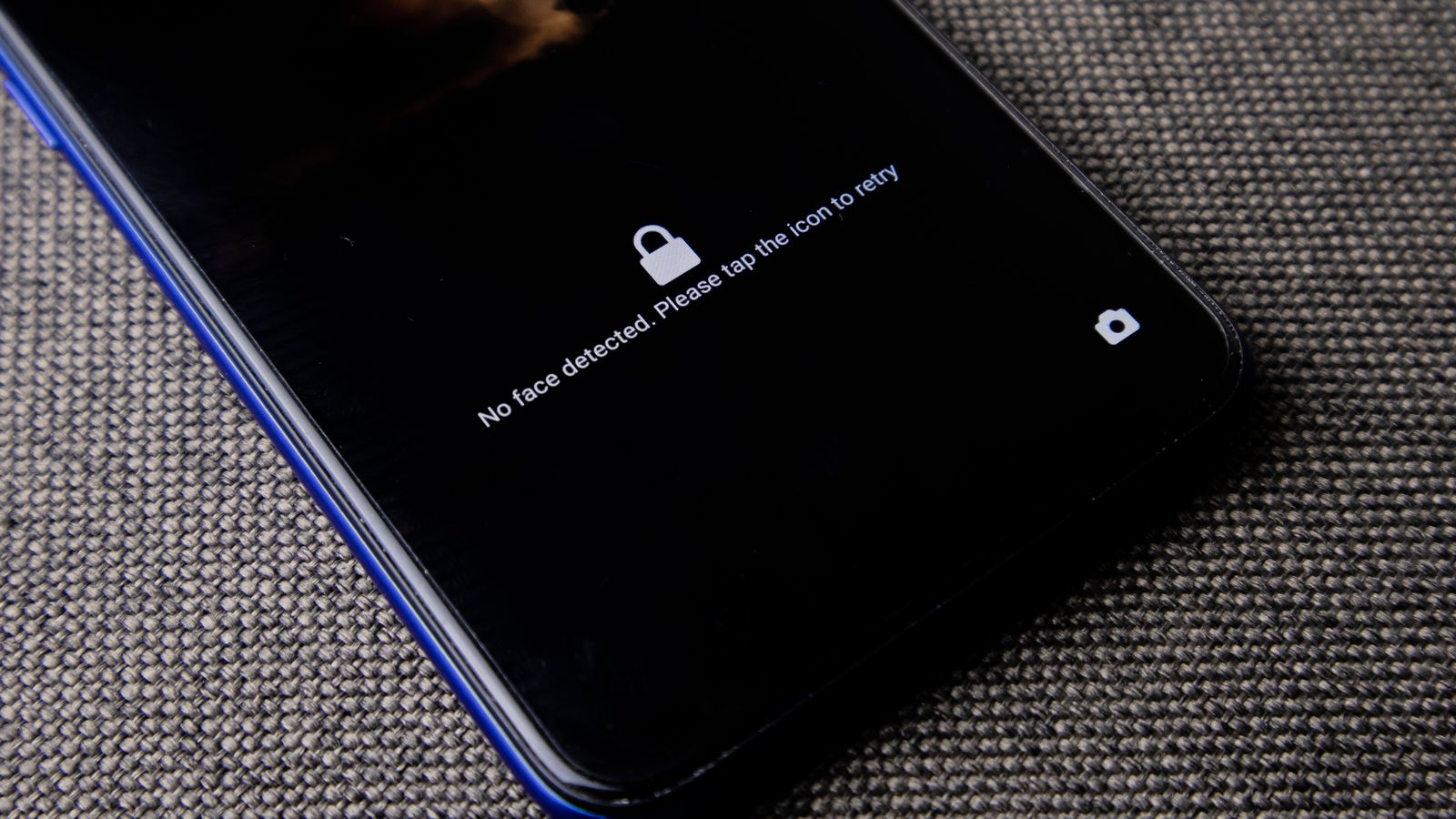
Face recognition can identify an owner while they casually look at the phone. Some devices change the notification preview after authentication while leaving the same lock screen visible. A fingerprint sensor can do something similar when you press the wake button with an enrolled finger. To see what a passerby sees, keep your own face outside the camera's likely view and use a non-enrolled finger or an ordinary pickup gesture that leaves the device locked. Check for its locked indicator before examining an expanded alert. If a watch or another nearby device can help unlock the phone under configured conditions, account for that in the test.
You can also ask another trusted person to wake the locked screen by tapping it while you sit outside its camera view. They need only look at what appears and tell you the result. Keep your passcode to yourself and use your own test message. An always-on display can present a simpler set of icons before a touch or lift reveals more detail. Compare the always-on view, the fully awake lock screen, and what appears after authentication. These are three experienced states even if your phone's settings use two or more different names. Once the distinction is clear, you can choose a preview rule based on the behavior you observed.
Keep useful alerts while changing what they reveal
Many phones let you choose a broad notification setting for the lock screen and then adjust particular apps. Apple describes controls for lock screen access and what appears there, and Google documents lock screen notification options on Android with variation by manufacturer. Search the device settings for phrases such as “notification previews,” “lock screen” or “sensitive content,” and consult the manufacturer's guide for the installed version. Read the descriptions for the choices available to you. One setting may suppress the entire alert on the lock screen. Another may show that an alert arrived while hiding text until the phone is authenticated.
Try this with a few types of app you use. A delivery alert might be useful without an address, while a private chat may need to hide both its sender and body. A schedule reminder might be worth a vibration and a generic icon. Leave a time-sensitive app with whatever alert behavior you actually need and send a harmless alert through each changed app. Use a realistic notification, such as a test appointment with a made-up title. After checking the locked screen, unlock the device and confirm that the notification remains available where expected. If the sender's name still appears, inspect the app's per-notification options as well as the phone's global setting. Behaviors can differ even between apps installed on the same device.
Walk through the shortcuts you can reach without unlocking
A screen can hold more than notifications. Check the clock area, any calendar or activity widget, and the shortcuts available with a swipe. Some phones let you access the camera, flashlight, home controls, media controls, assistant or wallet from a locked screen, subject to device and feature settings. Look at the information visible when a shortcut opens before any authentication prompt. A media widget might display a podcast title, for instance. A calendar widget could reveal the time and name of a future event. On a family phone it may be useful to leave playback controls accessible and exclude calendar details. Set the choice based on the content each control can actually show.
Try at least one locked-screen voice interaction if you have enabled an assistant. Use an ordinary request about the time or a sample reminder that contains no private information. Notice which tasks are allowed and when the assistant requests authentication. If an action can send a message, control a connected device or read personal details, review the specific lock screen options and give access only where it suits your use. Keep a common shortcut, such as a flashlight, if it is genuinely helpful. Verify that the phone's normal unlock flow still works and that the actions you intend to require unlocking prompt for it. The quickest settings test is to try the control from the locked state again immediately after changing it.
Check emergency access on its own terms
Find the device's emergency calling screen and learn how it opens while locked. Leave emergency calling available and identify the route without placing a practice call to emergency services. Software and local service support can vary, so consult the phone's emergency guidance for your location if any controls are unfamiliar. Some devices also let you make a medical profile or emergency contacts accessible while locked. Review each field you have entered and choose which information you want another person to be able to see. A profile set for emergency access can be visible to someone holding the device, including a first responder.
Review a contact entry as carefully as the name on the main profile. An emergency contact may have changed number, or a relationship description may reveal more than you intend. Confirm the details with the person if you are relying on them in that role. Check the locked display of the profile from your own device without starting a call. Keep the decisions about medical details and alerts separate from the decision about showing an ordinary message. In an emergency, identifiable access or contact information may be useful. In a café, a chat preview need only show that a message arrived. These features have different jobs and may use different settings menus.
Follow a sample notification onto the other screens you own
A phone can mirror alerts to a watch, tablet or desktop. Changing the phone's preview setting may leave a paired device with a separate rule. Send a fresh test message and observe each device in its normal locked and awake states. A watch can have a setting that shows a short summary until you tap it. A synced messaging app can have its own desktop notification preferences. A shared computer account may keep a message in its notification area after the phone alert is dismissed. Note whether the device needs to be unlocked, whether contents appear by default, and what someone nearby can read.
Consider a household in which one person has a work calendar on a personal phone and paired watch. Hiding the details on the phone may still leave a meeting title on a watch face when someone raises an arm to hand over an object. That person can review the watch's preview rule or disable calendar mirroring while keeping alarms. At a computer connected for phone messages, open its notification settings and inspect the relevant app using the same test phrase. Check any in-car or other display integrations you use after stopping in a safe location. Treat each device as a place a notification can appear. Compare the result with your actual reasons for wanting privacy on a locked phone.
Check the situations that happen every week
Run a short final pass using the alerts you want to preserve. Put the phone where it usually rests during the day and send a test chat and calendar reminder. Observe how it looks on a desk when viewed at an angle. Wake it without authenticating, test any shortcut you kept, and then unlock it to see that the alerts are still usable. Check the paired watch or computer at the same time. A decision you can remember is easier to maintain. You might choose to keep a vibration for work messages and reveal content after authentication, or keep call alerts visible while removing names from other notification types where the device permits that split.
Write down two or three settings that made a practical difference, with the phone model or software version if you manage several devices. Look at them again after replacing a watch, adding a work account or changing software versions. Repeat the test if a familiar app starts showing a different style of alert. Your locked screen should give you the signals and emergency access you deliberately keep, while reserving private details for the moment when you are ready to read them.