Prepare a laptop for a room you share
Reduce casual screen and notification exposure while keeping normal work usable.
Look back at the desk from the other chair
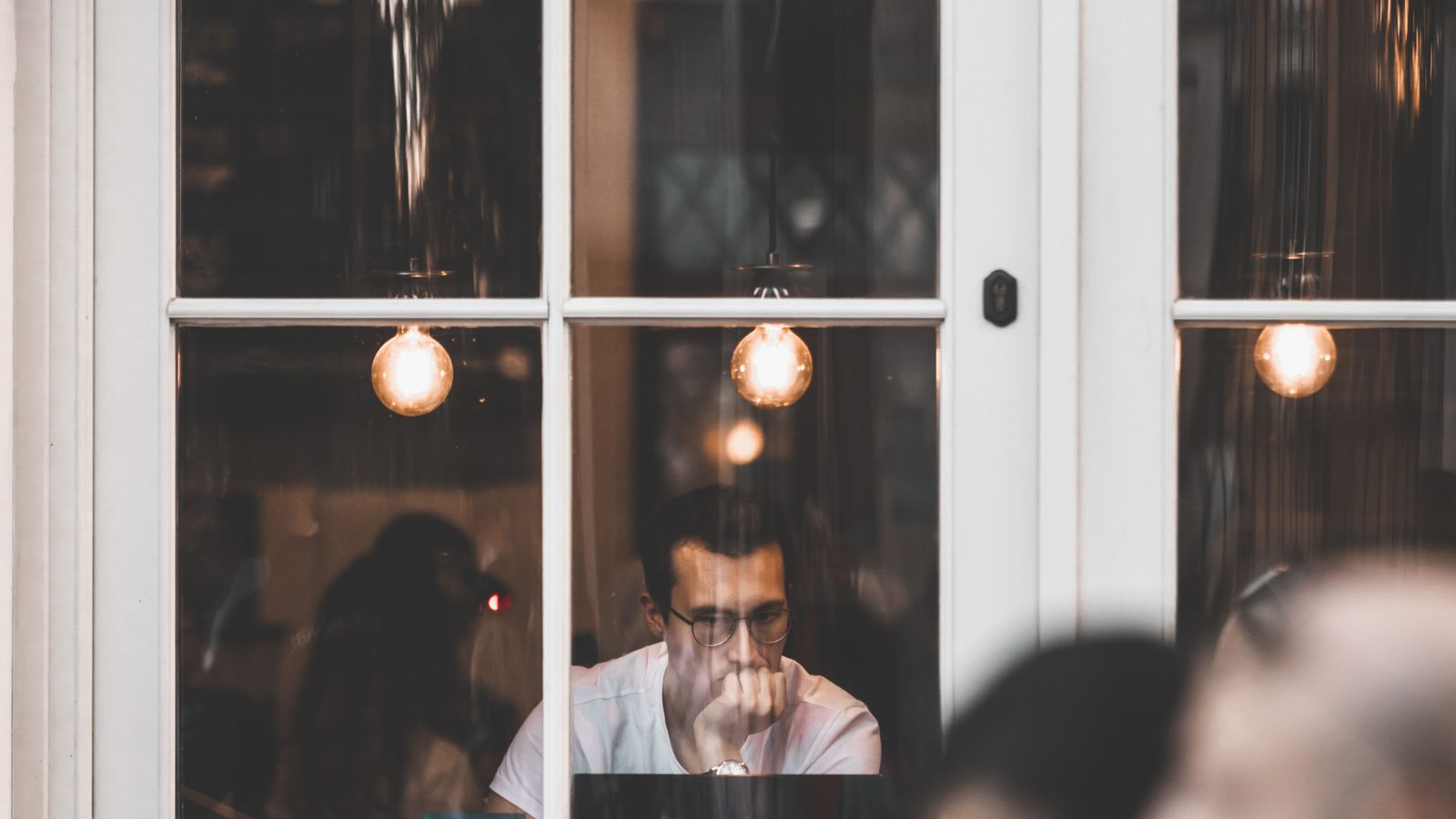
The easiest way to understand laptop privacy in a shared room is to move out of your own seat. Leave a harmless document on screen and take a look from the doorway, the seat beside you and the spot people use to wait for the kettle. Check at the height of a seated person and again standing up. There may be a place where the whole screen is readable that you cannot see from your side of the desk. A dark window or glossy cabinet can also send an unexpected reflection across the room when the monitor is bright.
Try turning the screen or rotating the desk a small amount before changing software. A position facing away from traffic can still give you an approach from the side and a clear view toward the person you are meeting. Keep doorways, electrical leads and shared surfaces usable. If you regularly need to show a screen to somebody in the room, find an angle that can be moved between the two jobs without loosening a mount or dragging the whole workstation.
Test the screen at your normal brightness instead of making it temporarily dim. Reflected light changes through a day, and you will use the setting that feels comfortable once the test is done. If a privacy filter makes sense for an unavoidable seat position, try it with the exact display and your normal working angle. Some filters reduce brightness or change image appearance. Read the fit requirements and check the effect when you tilt the screen, stand or show a colleague something.
Send a test notification instead of assuming previews are private
A phone alert copied to a laptop can contain a message that was never opened on the computer. A calendar banner may reveal an event title. Email, chat and device-linking tools can each show information using different settings. Put a harmless example on a channel you control and watch the display while it arrives. The important difference is what appears before you choose to open the message.
Try the notification while unlocked, while the screen is locked and while a meeting is running, if that is one of your ordinary uses. Do not use actual confidential information for the check. A title like “Test message from the other room” makes it obvious whether the sender, the title or the full body appeared. Look at both external monitors if you have them. Related mobile apps may still show a banner on a second screen even after you have changed the mail client's own preference.
Decide which interruptions are useful. You might want an alarm for the next meeting but prefer a generic badge for private messages. Change the least broad setting that achieves that result. An operating system focus option can help during calls, but software might ignore it if you have allowed certain apps or contacts through. Keep necessary reminders enabled and run a brief rehearsal in the app you normally use. Settings that feel obvious in a control panel can be less clear when you are sharing a screen.
Separate genuine sharing from taking turns in one session
If two people need the same laptop, give them separate device accounts where supported. It makes the handoff easier to understand. Each person can sign in and use their own browsing data, desktop files and familiar shortcuts. A full operating-system login is a different boundary from a browser profile, which organizes browser data but may still live inside the same accessible device session. Study how switching users behaves if the device is managed by work or school.
Check where downloaded and saved files go. For example, a document you use with a volunteer group might sit in a folder that automatically syncs to a private account. Another document may be in an intentionally shared operating-system folder. Ask who actually needs it and send or share it via the appropriate account with the permissions you intend. A shared folder meant for a single presentation does not need the rest of the group's material.
Work through the everyday handoff once. Save an open file, put the session behind its lock screen, then let the other person open their own account without touching your sign-in. Verify what the screen shows before anybody authenticates. On returning, check that the screen really requires authentication. Closing a lid and expecting a lock depends on the power and sign-in settings. The normal lock command can be easier to demonstrate and remember, particularly with an external display that stays on after the lid is closed.
Share the smallest working view on a call
Before a screen share, identify what the meeting actually needs. A finished slide deck may be better presented through its own window. A demonstration in two applications might require switching the selected share or temporarily using a separate desktop. The exact sharing options vary by service, and some apps can share a tab, an application window or an entire display. Preview the options in a practice meeting and confirm which one the other person sees.
A browser tab share and a display share have different edges. A full display can show a taskbar, incoming banners, a password manager popup or the wrong window when you switch. A narrower share can make it harder to show a linked document. Try a dry run with ordinary example material from the same apps, especially if a second monitor is involved. Ask the other participant what appeared when you opened a new tab, switched applications or stopped sharing. That feedback can answer more than the marker seen on your own screen.
Check the environment around the camera while you are there. A screen behind you may be visible in a bright reflection, and physical papers can be readable if you move a laptop closer to an object. Set a place for the material that belongs in front of you but outside the call frame. If your app opens the camera or microphone from a dock after a connection change, select the intended device in the preview before entering. Do not assume the app remembered your last selection when the hardware has changed.
Walk through a two-person example
Imagine a laptop on a dining table shared by a remote worker and a parent helping a child plan the next week. The worker needs occasional video calls and wants to see reminders from a team calendar. The other person needs a browser for a school page. In the current arrangement the laptop faces a glass cabinet, the browser opens to the worker's bookmarks and somebody always says “just use my window” for a five-minute task.
Begin by checking the reflection with ordinary room lighting. A simple shift to the end of the table can point the reflection away from the other two seats and move the camera away from the hallway. Next, make separate local or managed profiles appropriate to the device, with each person opening their own document. Confirm where a school download lands and whether the other account can see it. Avoid installing additional browser extensions simply to hide a notification you can control in the system settings.
For a practice call, share one normal document with a harmless placeholder on the other screen. Send a mock reminder and check what is visible on that person's laptop. Change the calendar's preview or the system banner behavior only after seeing it. Add one reliable lock habit instead of a series of hard-to-remember steps. Keep a clear place for unrelated papers near the desk, and ask the household to put small things there before a call. An arrangement that makes all of those steps natural is more likely to hold up on a morning when everyone is late.
Recheck after the desk or device changes
The best arrangement is the one you can keep using. A new monitor, guest using the table or unfamiliar shared call may bring a position you have not tested. Look at the screen from two others' usual places, check a notification and run the application preview. A bright second display or a new camera angle can undo a useful choice without showing up as a change in your account settings.
For frequent shared calls, keep a simple order: confirm the meeting profile, silence or limit the relevant previews, select the exact window, and stop sharing before opening other work. After signing out or switching users, confirm the next person has the access they need. Good physical placement and a good handoff routine solve separate problems and both can stay simple. The room can remain convenient for the people in it while your work is visible only where you intended.
Check the view during a transition
Walk through the moment when one person leaves and another sits down. A perfectly placed screen offers little help if it stays open right after the worker stands up. Reaching for the lock command can be a natural part of picking up a phone or closing a notebook. If a relative needs to borrow the charger instead of the computer, put the cable where they can unplug it without opening the lid. These small physical details determine whether the planned handoff is the one people actually use.
Try the same check after lunch on a bright day. A window that was clear when you arranged the desk can become reflective behind the other seat after dark. If the desk doubles as a family table, put one removable marker near the position that gives a clean view for each use. A mark under the stand or a spot on a table mat can make a reliable camera and screen angle easy to restore.