Move a router before buying more Wi-Fi gear
Find a better router position by testing rooms, heights and tradeoffs with simple measurements.
Sketch the spaces where Wi-Fi matters
Draw a rough plan from the router to the farthest room where you need a reliable connection. Mark the desk, sofa or table where devices actually sit. Include the big things the signal may cross, such as a masonry wall, a refrigerator near a doorway or a metal filing cabinet. A plan of just three rooms can be enough. If the router is tucked inside a media unit, note its shelf height and the material of the cabinet doors. It can seem close on a floor plan while two substantial surfaces lie between it and the computer. A path along an open hallway can work better than a shorter line through several dense partitions.
Decide what counts as success in each place. A kitchen tablet may only need to keep playing a recipe video. A desk set aside for meetings may need predictable upload and low delay long after a speed test ends. A television's demand is different from a phone briefly checking a message. List one everyday task at each point. If the problem appeared after adding shelving or moving the desk, note that change. If it started after a service interruption, the provider's equipment or connection may deserve attention before changing a room. Separating the places and jobs gives you something concrete to test.
Check the connection before blaming the room
If you can, connect a computer to the router using Ethernet and run a speed test with a reliable server. Save the result and time of day. Check that the wired connection itself negotiated the speed you expect when the operating system or router can show it. A slower wired link can produce a misleading baseline. A test to the internet also includes traffic beyond your house, including the provider and test endpoint. When both wired and wireless tests show a similar problem, check the router's service status and see whether other websites or devices behave the same way. That information can help the provider diagnose a connection problem.
Next try Wi-Fi on the same device near the router. Disable the wired link for that pass and avoid switching devices as you move between rooms. Run the comparison against the same server where the test lets you select one. Try to keep cloud backups and big downloads from changing during the test. If an ordinary connection gets slow only in the far room, location is a better candidate to investigate. If the link to the internet is unreliable even next to the router, a nearby access point may reproduce the same problem. For someone with a local wired computer that can serve a file, a large local copy offers an additional comparison with fewer variables outside the house. Leave installation of extra tools aside if a simple wired check answers the question.
Separate steady coverage from a good peak speed
Pick a few locations and test at the height at which you work. Set your test phone or laptop on a usual table. Take two or three readings and record the range rather than one peak. Write down symptoms that a browser-based throughput test can miss. If a meeting becomes choppy when you turn toward the corner of a room, try a short call with someone who knows you are testing. A file upload during a test can show whether the connection stays steady over a longer interval. A simple internet speed result can look good even when brief interruptions cause calls to freeze.
If you use a phone, confirm it stays on the intended Wi-Fi network during the comparison. Some phones can use mobile data when Wi-Fi performs poorly, which can hide the difference you are trying to record. If a router or device reports the access point and band it joined, note those as well. An automatic switch between bands can explain a large change between readings. Keep the network name and settings as you ordinarily use them for the first pass. Repeat at the busy time if an issue happens only in the evening. A consistent pattern that appears when the kitchen door is shut or at the far end of a hallway provides a better clue than a single score online.
Give the router an open position it can safely occupy
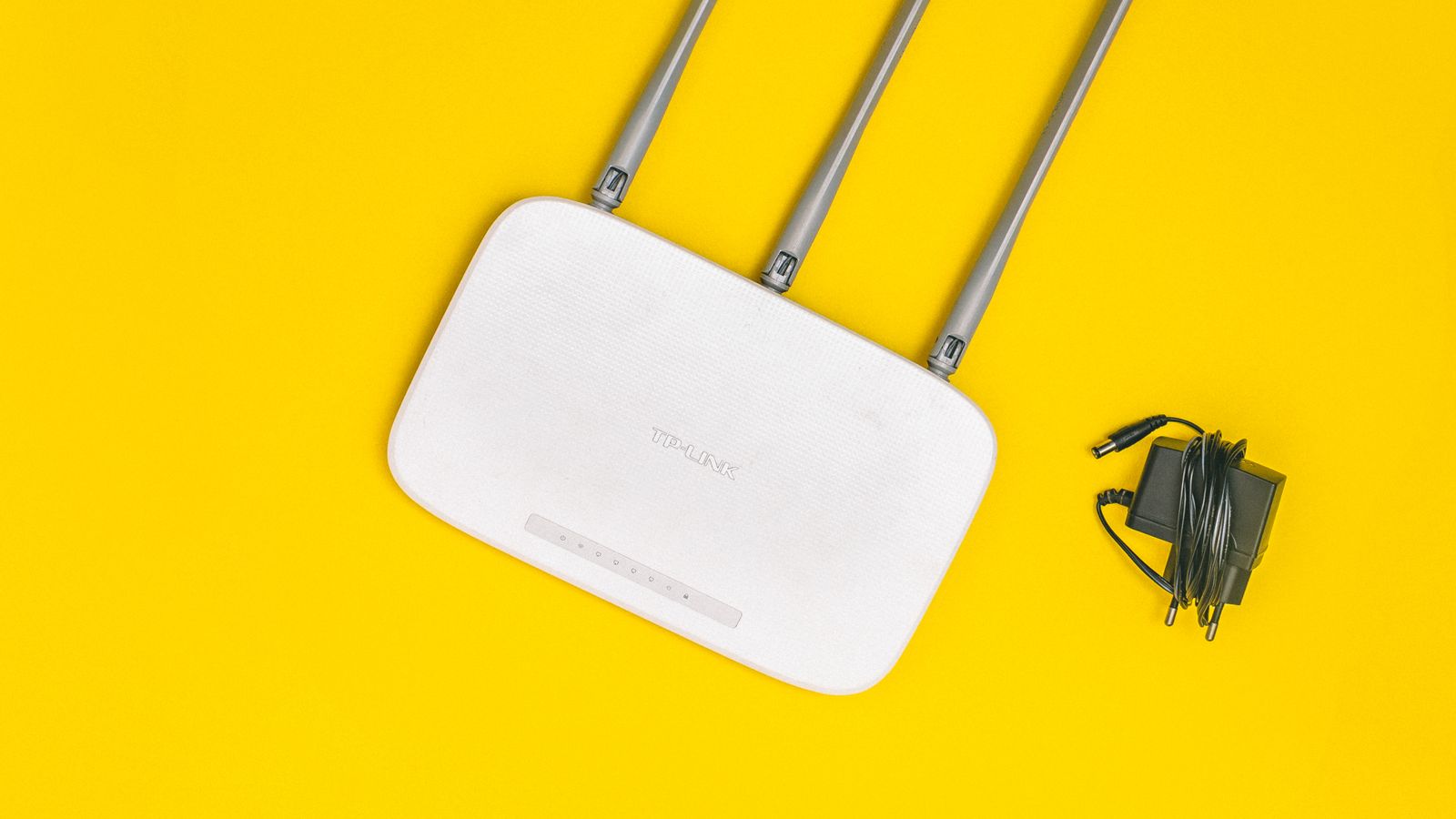
Try a stable spot with air around it and enough clearance for the wiring. If it currently lives on the floor behind the television, an open shelf a little higher may clear nearby obstacles. Keep it away from radiators, sinks and enclosed spaces where heat can build. Set it up in the orientation specified by its maker. Leave its power adapter and the connections it requires within reach. If your internet connection enters through a modem or a separate provider terminal, an appropriate Ethernet connection may give you flexibility to place the router elsewhere. Installed fiber and provider equipment can have their own handling requirements. Review provider instructions before disturbing them.
Consider a home with a router in a front room and a workspace in a back extension. A test by the living-room door may be steady, while the signal drops when the office door closes. Move the router out of its cabinet and nearer the opening, provided the cables fit safely. Test the office at both positions and both door states. You may discover that the change helps the office but leaves a television in the opposite corner marginal. Compare the results against the jobs you wrote down. If calls are an hour-long daily need and the television streams reliably at either spot, a small shift can be enough. Give the new place an ordinary afternoon before making cable fastenings permanent.
Test a meaningful height or angle change on its own
A candidate spot can work differently just above the back of a sofa and below it. Move the router between two secure shelves to see whether the result survives ordinary changes in the room. Try a lower and higher position in the same area before moving across the house. Keep a margin between the device and any cabinet walls. If your router has external adjustable antennas, consult the product instructions before changing all their angles. A changed mounting angle and a different shelf location together make it harder to identify what caused the difference.
Once the test solidifies, repeat with the normal doors shut and open. Try another device if just one laptop continues to struggle. Phones and computers can differ in antenna performance and the bands they support. If the second device works at the desk and the first one fails there, check its software and Wi-Fi settings or whether its position relative to a monitor affects the result. Keep the router configuration steady during a placement test so its new spot gets a fair comparison. If you later change a channel or another setting, save the existing configuration using the maker's instructions and measure the effect separately.
Put an additional point where it can get a good connection
A distant room may have a useful wired link even when the main router's Wi-Fi stays weak. An access point connected over Ethernet has a wired path back to the home network. Its radio can then serve the area where people use it. Before purchasing, check whether the proposed location has power, whether the cable route fits, and whether compatible existing equipment already offers an access point mode. If you use a mesh system, confirm that the devices and ports support the intended wired or wireless backhaul. Backhaul is the link that carries traffic between the additional point and the main network.
A wireless mesh node or repeater needs to receive a good signal from the upstream point. Putting it right beside a laptop that barely reaches the main router may leave both with a weak path. Try a spot between the main router and the room, such as a hall shelf that still reaches the router strongly. Consult the system's mesh test if it has one and try an actual call or file transfer beyond the new node. A mesh point can improve the local signal while its connection back to the router still limits internet use. If the intermediate spot is beside an appliance or behind another thick wall, try a position that gives it a clearer link. A good result has to survive the ordinary position of all the furniture and doors.
Keep a proven setup easy to restore
Photograph the router and its connections once you know which placement works. A note can identify the router port used for the provider connection and which cable belongs to a distant access point. Leave cable slack so a connector stays free of strain, and route cables away from walkways and door hinges. If you will put a shelf or a cable guide in place later, set the equipment where it will ultimately sit and check the likely clearances. Have the provider's instructions available before changing a connection involving installed fiber.
Save a simple record with the test locations, the approximate speed range and whether an ordinary call or stream ran smoothly. Use it when a new item of furniture changes the room. If next month's provider issue affects every point, the earlier wired baseline will help you see how broad the change is. If one chair returns to trouble while the others stay strong, the drawing gives you places to look. A router placement has earned its spot when the network stays usable from the places people already sit, the cables are secure and there is a clear way to figure out what changed later.