Pick an SSD for the files you move every week
Budget for a portable SSD using working-set size, sustained transfer and the ports you already own.
Work out the amount of storage used in a busy week
Measure three recent folders from work you expect to repeat. Include the source files, project files, exports and temporary material you normally carry while moving between computers. Find out how many projects can be active at once. A drive that will carry one finished archive needs a different amount of working room than a drive that holds footage for three current projects and an export folder for each. If you routinely preserve earlier revisions, include them in the estimate. Measure from real directories so hidden media caches or linked files can enter the calculation.
Suppose three active folders use 110, 150 and 190 gigabytes, and you normally need room for a 100-gigabyte temporary export. The working set in that situation is about 550 gigabytes before growth and spare space. A drive advertised as 500 gigabytes would be smaller than that observed requirement. A 1-terabyte capacity would leave room to consider the way the filesystem and system report usable space and how quickly the projects change. Treat these numbers as an example of the arithmetic. If you work with several small design documents, consistency across devices may matter more than a very large drive. Record the largest working set you expect to move in a normal week and check it again when your workflow changes.
Trace the slowest part of the connection you will actually use
Write down the host port on each computer, the cable, and the drive's documented interface. USB-C describes the shape of the connection. USB-IF uses data rate names such as USB 10Gbps for the signaling a product can deliver. Check which rates the computer port and drive support, and which cable the drive includes. Some computers place similar sockets next to one another with different capabilities. A monitor's downstream USB port, docking station and small hub can each share or limit the connection. A drive advertised with a high maximum rate needs a compatible host and path to approach it.
A desktop computer with a suitable direct port and an older laptop connected through a hub may see very different speeds from the same device. For the machine you use most, start with the connector and port specification you can actually reach. For an occasional machine, check compatibility even if you care less about the maximum rate. When moving a drive between machines, notice whether it gets enough power from each connection and stays attached when other devices share the hub. If an operating system or vendor utility shows connection speed, record it as a supporting observation. Your measured file transfer includes drive, source storage, interface overhead and software, so it is the better basis for estimating how long a job will take.
Use a small-file folder and a large file as separate tests
Collect one representative batch of many small files and one large disposable file. A folder of thumbnails or a web project, for example, may contain thousands of short files and require repeated filesystem work. A single long video produces a different pattern. Copy each from a source you know can read fast enough and use the same empty destination folder for comparable tests. Time from the start until the copy is complete. Compare file counts and sizes at the destination and open representative items there. If a test application reports a first burst of speed, follow the actual elapsed copy time as well.
Some drives can report much faster writes during a short burst than over a longer transfer. A cache, the amount of free space or temperature may affect what follows. Pick a large file that resembles your workload and let each pass finish. If you repeat a run, allow the setup enough time to return to ordinary conditions and note whether you just filled the drive or used a warm cache. Compare one direction at a time. Copying onto a portable drive and reading back from it stress different parts of the setup. If the task is to pick up a client project before leaving a desk, write speed is often the time pressure. If you move media to a main computer afterward, the far end needs a useful read speed too.
Check what it costs to move your slowest ordinary job
At 200 megabytes per second sustained, a 60-gigabyte file of decimal units takes about five minutes to transfer, before additional overhead. At 600 megabytes per second it takes about one minute and forty seconds under the same simple calculation. Compare those times with how often you transfer the file and how much of the time you have to wait nearby. A person who connects the drive overnight has a different reason to pay for speed from someone who copies two cards between appointments. For many small files, estimate based on the time you observed for that batch instead of projecting from a single giant file.
Consider a drive purchase for a photographer who imports a shoot once a week from a reader and sends a smaller selection to a laptop. If the reader or source card limits the first transfer, buying a faster destination may change that stage only slightly. The second transfer might benefit depending on the laptop's port and the destination. Time the step you are actually waiting for, then note which connection would change with a new drive. If the two computers you use have markedly different capabilities, write down a working combination for each. A drive's advantage is most useful when the working setup can deliver it in the place you need it.
Give a portable drive a stable resting place
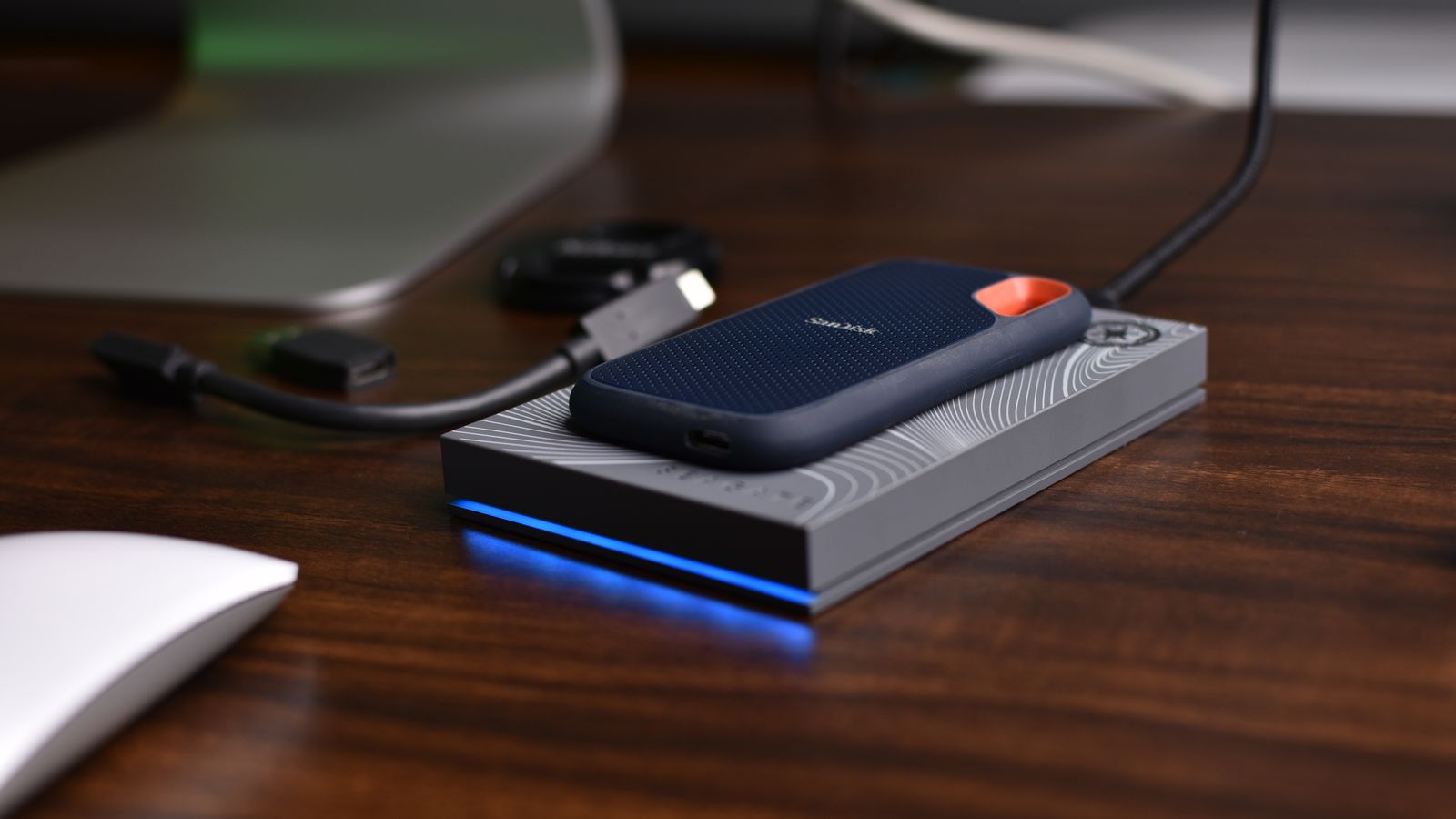
Try a candidate setup on the desk where you use it. Check how much cable is available when the drive lies flat and the laptop moves a little. A very short cable can make the drive easy to carry and put sideways force on the port when attached. A longer compatible cable can let the device rest clear of food, feet and moving furniture. Route it so fingers can reach the plug and a bag strap cannot easily catch it. If a hub lives under the desk, test whether the drive can remain on a stable surface without bending a connection sharply.
During a long transfer, the enclosure may become warm. Follow the device's environmental guidance and keep it clear of materials that could block cooling. Compare transfer behavior from ordinary use and after a sustained copy. Heat can affect some drives' speed and a loose cable can produce interruptions. If the same large file fails when the laptop shifts, verify the cable and support first. Portability involves the entire kit. Check whether the included lead fits both machines, whether a stable resting location is easy to find and whether the drive remains accessible where you usually work. A reliable placement with a documented cable can save more time than a higher burst rate.
Choose a filesystem only after identifying the systems involved
Find out which operating systems, media devices and applications need to write to the drive. A filesystem can be easy to read on one computer and need additional support for writes on another. Some disk formats are designed to support particular operating-system features such as permissions, encryption or application backup. A cross-platform format may serve simple file interchange while differing from what an app expects for its own backup volume. Check the current documentation for each device and decide based on the job the drive has to do. A camera or television may have specific size or formatting limits even when both computers can use the disk.
Formatting can erase the contents of the selected drive. Verify the intended device and confirm that any needed data is safely backed up and can be opened before formatting it. When the format is chosen, copy a test folder and one file whose size reflects your actual use. Try the drive on both computers, add a small change, and confirm you can read it back on the other side. Test any encryption setup using the supported reader on each intended machine and store recovery details separately. Eject the drive using the system's ordinary safe-removal process before unplugging. If the OS says it is busy, check that the applications using the volume have finished and that writes have completed.
Keep the portable copy in a plan that accounts for loss
A drive carried between places can make a useful working copy, and it can also be left in a bag or damaged in transit. Decide where the authoritative project lives and when it receives changes made on the portable drive. If more than one person edits copies, keep a clear version rule to prevent an older version from overwriting newer work. Keep an independent backup of important material and rehearse opening a sample in its usual app. A copy made while traveling needs a handoff back into the normal library before you clear the portable space.
For the final check, hold the working set you measured, copy a representative project, and confirm the files open on the systems you use. Note the cable and port, approximate wait time, and which machine gains from the drive's faster mode. Compare that with what made the previous workflow difficult. A suitable portable SSD holds the live work, stays connected in the position you use, and completes copies in time to leave without guessing what finished.
Before keeping a new drive, check whether the vendor supports health or firmware checks on the computer you use. Save its model name and any recovery details separately from the device. A properly labeled lead and an ordinary copy test are especially useful when two similar drives share a desk. Try connecting the drive after a normal restart and confirm your project opens from the location you expected. This quickly exposes a changed drive letter or mount name before you leave with it.