Run a short Ethernet cable without creating a trip hazard
Use a modest wired connection to stabilize a desk while keeping doors, paths and furniture usable.
Identify the ports before measuring the room
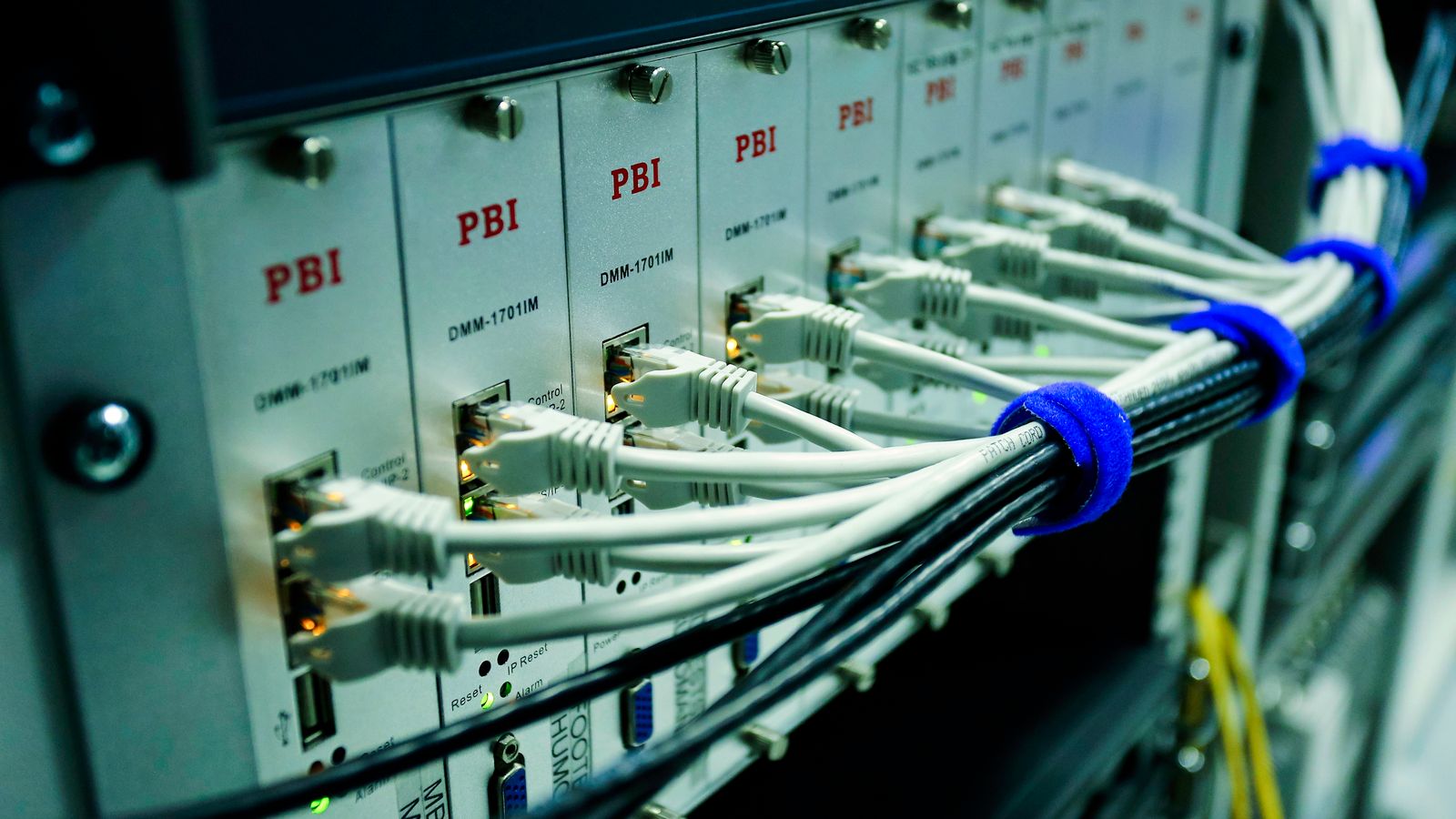
Choose the endpoints of the run. One might be a spare local network port on a router or switch, and the other might be a built-in Ethernet port or a compatible adapter on a laptop. Look at the documentation and labels before using a port. A provider connection, a port configured for a different purpose, and a free local network port can look alike. Identify the speed the devices support and the cable type specified for the intended link. A gigabit switch port connected to a 100-megabit adapter will have a 100-megabit ceiling with compatible settings, regardless of how impressive the patch cord looks. Decide whether you need a wired link mainly for steadier calls or for large transfers within the home.
Plan the route from the socket on the first device to the socket on the other. Follow the walls and corners with a tape measure or a length of string. Include the vertical drop from a shelf, the rise to the desk and a gentle bend near each plug. A line straight across a room can look short while going around two bookcases and a doorway adds several meters. Keep enough length for the chair and desk to move as they normally do without pulling the connector. A modest amount of slack at both ends gives you room to unplug the cable deliberately.
Draw the path people already take through the room
Start at the desk and walk to the doorway. Open doors completely and push the chair back as if standing up. Check where wheels, furniture feet and the edges of drawers can meet the cable. A tempting gap beneath a door can pinch the jacket or hold the door open. A straight run behind the desk can still cross the spot where someone sets a bag or stretches a foot. Mark those points before trying the cable. Look for a path along the outside of the walkway, behind stable furniture with clearance or within an appropriate low-profile surface raceway.
Keep shared corridors and escape routes clear. If the only temporary path crosses where people walk, look for a different route or location for the network device. Check which changes the building or household permits before attaching anything or using a route through walls. For a permanent installation, consult local requirements and use qualified help where required, particularly if the work involves building services or fire-rated structures. A desk patch cable used in the open and building cable installed in a concealed route can have different requirements. A removable surface route can serve a rental where you are permitted to use it, and it can preserve a clear view of the cable while you decide whether the connection helps.
Try the full route without committing to fixings
With the home network available for testing, place a suitable patch cable along the planned route for a supervised trial. Keep the cable outside walkways and move objects as needed to give it clearance. Use supports compatible with the cable and the surface. Clips should hold the cable without compressing its jacket. Respect the cable maker's bend recommendations around corners and use a wider route if the bend looks tight. Avoid using sharp staples or closing a heavy piece of furniture on the line. Keep both connectors visible until you know the route works. Check the condition of any plug with a worn retaining clip or a cracked housing before depending on it.
An example is a desk on the opposite side of a lounge from the router. A line past the doorway is shorter, but people step there every day. A route along the baseboard behind a sofa and around the back of the desk may use more cable and keep it beyond the chair wheels. It also puts the connection near the side of the desk where the laptop docks. Try both ends at the ordinary furniture positions and open the sofa storage or desk drawers while watching the cable. Give the run time to work before making a permanent change to wall surfaces. Temporary clips are useful when they leave the route easy to inspect.
Read the negotiated link before running a speed test
Check that the connectors seat securely, then look for the link in the operating system or the router's device or port settings. The two devices normally use auto-negotiation on compatible consumer equipment, with speed determined by what they can use on that connection. Cisco's documentation describes how Ethernet interfaces can exchange information about their link capabilities. A port light can show that a connection is active and may use a different color to indicate speed. Check the device manual before interpreting it. The interface status is more informative than assuming any lit port means the intended rate.
If you expected a faster rate, verify the specifications of the adapter, actual router port and intermediate coupler. Test with a short known-good cable nearby if you can do so safely. If that works faster under the same settings, try the proposed long cable again and inspect its ends and route. A damaged connector or worn cable may give unstable results or fail to negotiate the expected link. Avoid forcing a network speed setting without following the device guidance. A mismatched setting can create new link issues and make the physical problem harder to identify. A good diagnostic test changes either the cable, the port or the adapter. It leaves the rest of the connection in place.
Use the new link for something that matters at the desk
To evaluate the improvement, make sure the computer is using the wired connection during a private test call. Check the connection type in system settings and avoid streaming in the background for the first pass. Use your regular microphone and the call app where the problem happened. Ask the other caller whether your speech and video stayed stable. Repeat at the time of day when the old setup usually struggled. A high download result by itself can miss the short interruption you are trying to fix. The call result shows what changes in use.
If the goal is to move files within the home, copy a representative disposable file between devices you own or manage. Note the time and confirm it opens from the destination. A gigabit link's reported rate describes the negotiated connection. Actual file speeds depend on other things including the devices' storage and protocols. A provider's internet speed can also be lower than a fast local link, so use local and internet tests for the jobs they represent. If the connection intermittently disappears, record what the desk was doing at the time. Computer movement, an adapter coming loose and a cable caught under a chair point to different physical adjustments.
Recheck the slack and supports after a workday
Watch what happens when you stand, plug in another accessory, open the door and move the laptop from its dock. Leave a small loop of free cable where the ends need to move. Secure the rest in a way you can inspect and adjust. If one end is behind a cabinet, keep it reachable without having to pull the line. Put a short marking at each end if it shares a space with other similar cables. A label that identifies both endpoints lets someone recognize the route when a router or desk changes. It also reduces the chance of disconnecting the wrong line while troubleshooting something else.
After using the desk for a full day, look for small marks on the jacket at corners or places that have shifted. Check the clip positions and inspect the run while opening any moving furniture. A doorway or corridor should stay clear after someone rearranges the room. If a safe route needs the router to shift within an open area, compare its Wi-Fi behavior in the rooms that still rely on it. One wired device can work well while the new router position changes other people's reception. If a cable route cannot stay clear without damaging a door or creating a hazard, make a different route before it becomes a permanent fixture.
Keep enough information to repeat the working setup
Record the two devices, the ports used, the cable length and the link rate you observed. Add a sentence about the outcome in the original task, such as “three late-afternoon calls stayed steady at the back desk.” If you take a photo of the route, show where slack sits and where the cable clears the furniture. This gives you useful evidence when a connector is unplugged or a device is replaced. Keep old parts only if they safely provide a working fallback. A worn plug that has already interrupted a call is a poor spare.
Retest after moving furniture, adding a dock or replacing a switch. Confirm the path is still clear, observe the link on both ends where available, and run the job that originally prompted the change. The cable earns its place when someone can go through the room as usual, the desk can move within its normal range, and the network performs steadily from the seat you wired.
If you need the cable only for a few workdays each month, consider whether the surface supports should stay in place and the cable should be removed between uses. Label the planned sockets, leave an orderly coil, and plug it in before the first meeting. Keep the cable bend comfortable while stored and check that both plugs still latch. A repeatable temporary path is useful in a room with changing furniture, provided it stays clear of feet and doors every time you set it up.