Make remote calls the priority on a busy home connection
Identify which traffic disrupts calls and redesign the timing and routing around that pattern.

Put the frozen call and the household schedule side by side
Make two columns on a sheet of paper. In the first, write the last few times a call froze or the person on the other end stopped hearing you. In the second, list the transfers usually running at those times. A phone can upload a day's pictures when it reaches home. A computer can start backing up as soon as someone opens the lid. A console can download a large update while nobody is playing. Include activity you know about and leave guesses visible as guesses. A repeated overlap can give you a harmless comparison to try.
Say which direction seemed to fail. If other people say your picture froze while you kept hearing them, your outgoing data deserves attention. If everyone else's picture breaks up while yours reportedly stays clear, check incoming conditions as well. The app, camera and microphone can affect both observations. Look for the network statistics or help panel in the service you normally use, if it has one, and record a change during the problem. A clean audio check on its own is also useful when only one microphone cuts out. Choose a time for a private test in which you can recreate the normal discussion, screen sharing or camera use without risking an important meeting.
Find out how much room the connection has in both directions
At a quiet time, use an appropriate internet test that gives download and upload results. If you can use Ethernet on the machine where you take calls, connect it and confirm that it is the active path. Record the time, test endpoint and typical range over several short attempts. This establishes a baseline for the connection the call would use. Some home plans offer much more download capacity than upload. A result you consider excellent for streaming to a television can coexist with a small shared upstream that is busy sending cloud backups, photos and meeting video.
Check delay as well as data rate. Network tools that report delay under load show whether a transfer can cause small exchanges to wait. Think about a large backup sending data continually. The router and provider link can hold packets in queues until they can be sent. A person moving a file usually cares about when it finishes. During conversation, a late packet can cause an audible gap or a frozen picture even if the connection handles plenty of bytes over a minute. Compare results at the same site and time range. A nearby wired connection removes many radio variables, while the call still depends on the rest of the internet path and the application.
Pause one optional job and try the same conversation
Find a repeatable background task you are authorized to pause, such as a photo upload or a personal backup. Choose a time when you can safely resume it and make sure you remember to do so. Start the transfer and join a short test with a willing caller. Read a brief paragraph, listen to their reply and share a screen if that is normally where the problem happens. Note the moment when the picture breaks up and the service's reported network condition if available. Then pause the single transfer through its own controls. Keep the rest of the setup and call behavior similar and repeat the same passage.
For example, suppose a home connection has a modest upstream and a workstation starts uploading exported clips at five. A household member's afternoon call becomes choppy while messaging and webpages still work. If the meeting settles when that upload pauses and becomes choppy again when it resumes in a second test, you have a relationship to investigate. If pausing it makes no repeatable difference, restore the transfer and check another cause. Try the same call with the computer wired if it currently uses Wi-Fi. The result can help you split congestion shared across the household from a room-specific radio issue. Avoid performing multiple stress tests during other people's real calls.
Handle ordinary background tasks at better times
If the upload job is the source of the problem, check whether its app offers a transfer schedule or speed limit. Move large routine jobs away from a predictable call period if the delay is acceptable for their purpose. A periodic work backup may need to preserve a specific recovery frequency. Check whether its backup requirement still holds after changing the time. A photo library that starts transferring on arrival can sometimes be set to wait until a quieter period through a supported policy or application control. Test that it completes later and still has enough power and connectivity to do so.
A device downloading something can also make the rest of the connection busy. Check both directions in a real household session. Where someone needs to download a work build or send material as soon as it is ready, agree on a call window before changing their software. One household can set a shared expectation that large deliveries go after the evening commitments. Another may need a small upload limit during working hours and full use at other times. If only the call desk suffers, a wired route can be a simpler change than turning several jobs into scheduled tasks. Keep the choice tied to the observation that showed what mattered.
Test traffic management with the router's own instructions
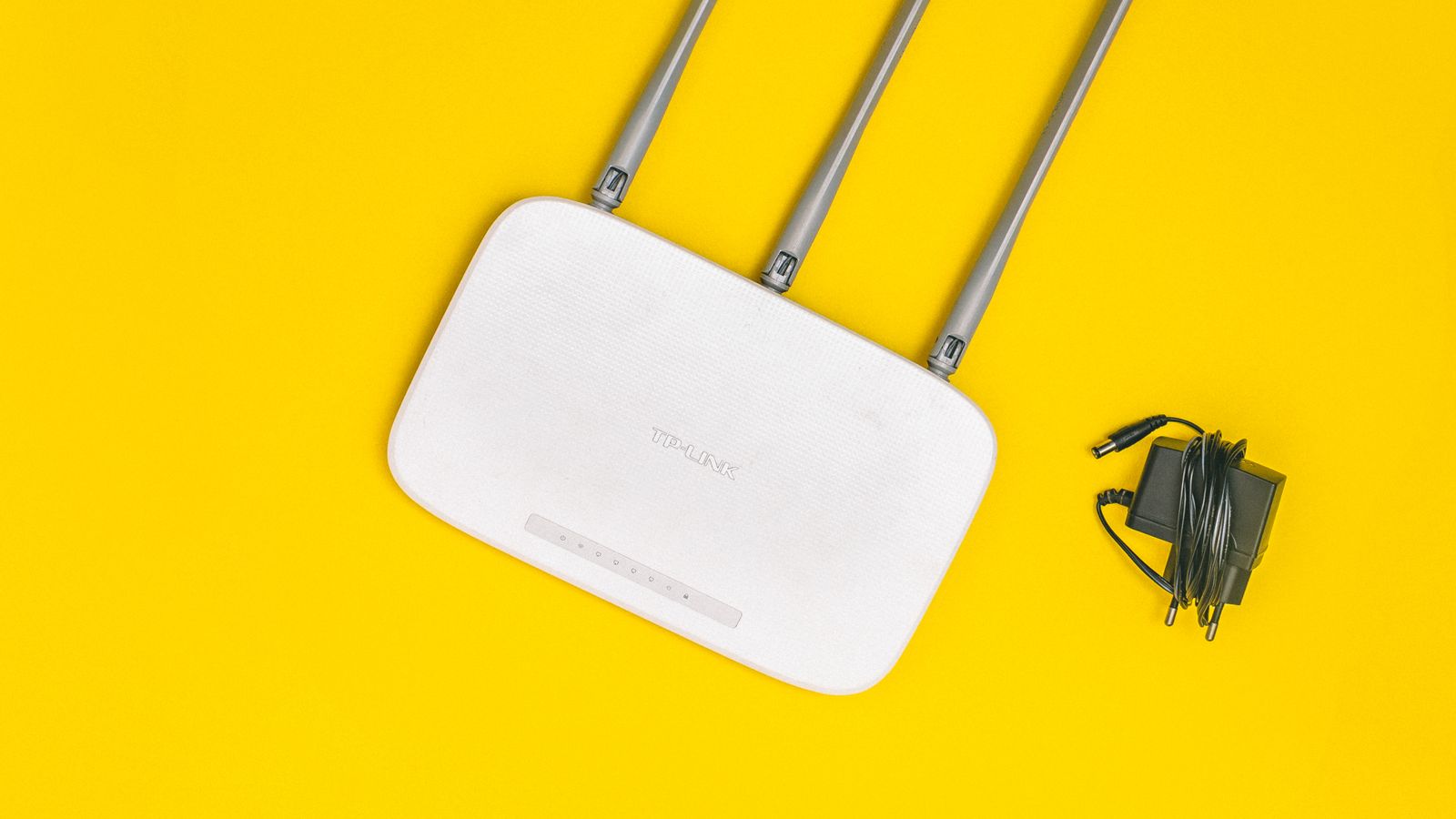
Some routers offer options to prioritize a device or class of traffic, or to manage the rate and length of queues. Read the documentation for the exact model and identify what the option affects. It can require a realistic estimate of the internet link or use automatic settings. A traffic management feature may lower peak throughput while reducing how long call traffic waits. Its result depends on the router's capacity, incoming and outgoing link, and the way it classifies packets. Verify the router's current setup and note how to go back before changing one setting. The household needs a chance to compare behavior without losing the provision it already uses.
When you test the changed setting, recreate the same call with the same bulk work and use the original endpoint for a second set of measurements. Observe the real result first. A small decline in the maximum download score can be an acceptable trade if the meetings and file jobs still complete within their intended times. If the feature slows everything and does little for the call, restore the previous value. Avoid assuming a high-priority label guarantees performance outside your home. Other networks and the meeting service still play a role. Set the feature only if its observable benefit fits the way your own connection is shared.
Recognize when the main bottleneck lies elsewhere
Compare a busy-hour wired test with a quiet-hour wired test and check which jobs are active. If everyone sees the same decline even while optional transfers are quiet, keep the measurements and compare the provider status or support resources. If a single meeting service behaves poorly and other calls are stable, look at its help information or try approved alternatives where suitable. If one computer slowly struggles as it opens more applications, check the machine's behavior and the call app alongside its connection. A high CPU load or dropped camera device may coincide with the busiest time without being caused by the network.
Consider the return path as well. The person at the other end could have the unstable connection. Repeat with another willing caller on a known working link while keeping your own conditions similar. If several people all hear the same outgoing interruption and you can reproduce it when a home upload runs, you can keep the investigation local. If the problem occurs with one remote participant no matter which home conditions change, document that observation and share it through the relevant support route. Keep any troubleshooting records free of confidential call content unless the people and service involved have approved sharing it.
Record the test that made calls steady
Keep a short note with the time, tested link, important result and what change fixed it. If you moved a backup, note when it now finishes and verify one later run. If you wired the main desk, test the night that originally gave trouble. If you enabled traffic management, record the key settings and what the comparison showed. A household with new devices can repeat that private call and controlled background transfer when conditions change. Look for the same problem before modifying the rule again. A new streaming package, scheduled update or provider plan may shift the time and direction of the load.
One practical success test is a representative call during the original busy period with the other household tasks active as intended. Leave enough time to see whether a backup or upload resumes. Ask the caller whether you stayed intelligible while sharing a screen or moving through the normal meeting. Keep the fastest bulk transfers you can use without disturbing that call. That gives both jobs a place in the household schedule and an example you can repeat after a change.
If the call desk has to remain wireless, add a separate test with other nearby devices operating normally. A fast room-to-room connection can become busy before data reaches the provider link. Compare a short call beside the router and at the desk during the same backup period. If both are wired in a separate pass and the problem goes away, decide whether the desk needs a stronger local path or less radio contention. Keep that result separate from your measurements of upstream capacity. It identifies a different part of the route to improve.