Place a monitor around the work you actually do
Set distance, height and angle around your eyes, your glasses and the tasks that fill the day.
Open tomorrow morning's work before moving the stand
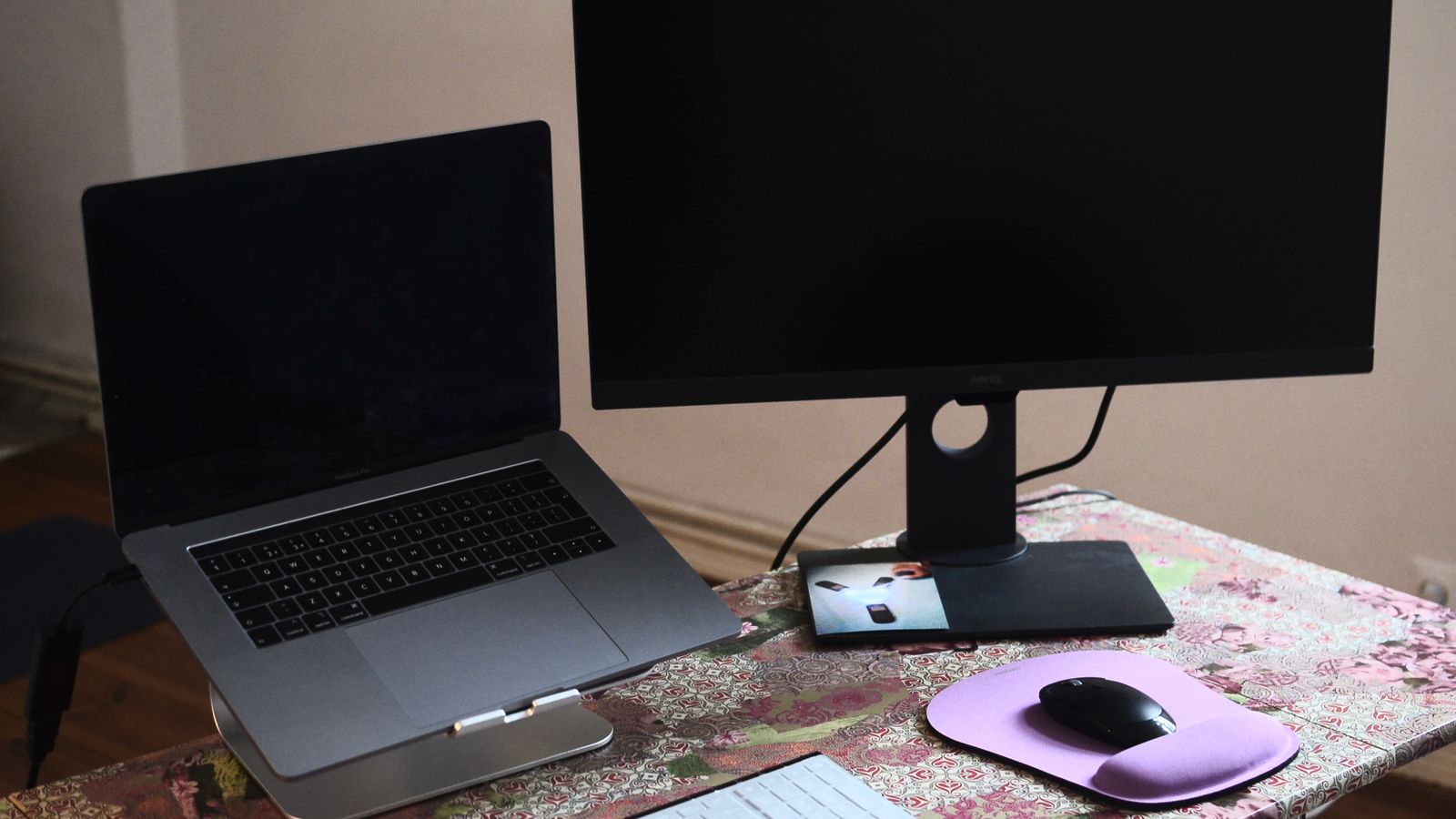
A monitor can look perfectly placed on an empty desktop and turn out to be a nuisance as soon as work starts. The spreadsheet everyone needs sits in the far corner, the meeting app opens a gallery on the laptop, and reading an ordinary email involves drifting forward in the chair. Set up the screen with a normal workload on it. Open a message that has several paragraphs, a document wide enough to make you scroll sideways, and the video app you use most. Put them where you instinctively look for them. This gives the setup a real job to do.
Start from your ordinary typing position. Let your shoulders settle, put your hands where the keyboard and mouse normally sit, and notice where your gaze lands. If you turn toward the monitor before you can read anything, the screen is probably off center for the task that matters most. If you bring the chair close to reach the keys, the keyboard placement may be driving the apparent screen distance. A stand that works while the chair is empty or the keyboard is pushed back can fail once both are in use. Adjust the furniture around how you work and leave an actual document on the display while making those changes.
Set distance with a line you can read comfortably
Find a paragraph with a line length typical of your work. Read it from the usual sitting position. Move the display back a small amount and read another paragraph of similar size. Watch for a forward lean, squinting, or a head turn at the end of every line. If the sides feel too far apart, more distance or a narrower text window may make reading easier. If small type gets difficult, increase the font or interface scale while leaving the monitor farther back. Physical distance and the size of text are separate adjustments.
The U.S. Occupational Safety and Health Administration gives a general computer monitor viewing range of about 20 to 40 inches, or 50 to 100 centimeters, measured between the eyes and the front surface of the screen. A 24-inch monitor with a shallow stand and a 34-inch ultrawide with a substantial stand use desk depth differently. Treat the range as a starting point. Check the distance with your back supported and the keyboard in reach. An ultrawide can be comfortable with one reading window in its middle and reference information at the edges. Filling its entire width with a continuous document tests a layout few people would choose for an hour of reading.
Try a lower screen if your glasses change your posture
Begin with the top of the active display around eye height or a little below it. Look at the line you read most often, usually below the page heading or toolbar. Your eyes should be able to settle there without your chin rising. With bifocals or progressive lenses, the part of the lens that makes nearby text clear may be lower in the frame. An otherwise conventional screen height can make a wearer look through that part by tipping the head back. Lower the screen in small increments and repeat the reading task from the same chair position.
The center of the monitor can be several inches higher or lower depending on display size even when the top edge matches between setups. Give the actual working area priority over a tape measure aligned with the bezel. Check what happens when you read the title of a long page, work halfway down it, and then use the menu or dock near the bottom. With an adjustable monitor arm, use those three points to find a useful height range. If the stand bottoms out too high, removing a riser or shifting the main window down the screen may solve the immediate problem. Keep the base stable and clear of the work surface edge.
Give the center position to the work you watch longest
A single large display can tend to collect windows at both ends. Put the window that stays open and demands focused attention directly ahead. Keep menus, chat and background information closer to the edges. On a two-monitor desk, the most-used screen can occupy the center even if the row of monitors looks asymmetrical. Turn the secondary monitor slightly toward the chair and check it with a short glance. If the two displays get genuinely equal use, start with their meeting edges near the center and bring both inward. Try that layout while alternating between two real windows.
Consider a person who works on a text document throughout the day and joins a short meeting every afternoon. The document belongs on the central monitor. If the call app defaults to the laptop at the left, drag the meeting window onto the large display and set the webcam near the upper area of that display. The call becomes more comfortable without having to sacrifice the main typing position. A person who spends most of the day interviewing people has a different priority. That person can reserve the central spot for the speaker, keep shared notes close to the speaker window, and move lower-priority work aside until the interview ends.
Look for reflections with the monitor turned off
Use the dark panel as a rough map of the room. At the time of day when the light is strongest, power off the display or put it to sleep. Sit in your normal position and look for the reflected shape of a window, lamp or bright wall. A visible patch along one edge can cross the document area after the sun moves. Rotate the monitor a little and watch where the patch goes. Try a window shade before increasing display brightness. If the desk can move, placing the screen roughly at a right angle to the window is a reasonable first experiment.
A standing lamp behind the chair may create a distinct hotspot. A small lamp beside the desk can provide useful light if the shade keeps the bulb from appearing on the screen. A bright window behind the monitor creates a different difficulty because the eyes are looking at both a dark display and a bright region nearby. A light-filtering shade can help with either condition. Repeat the test after dark if you often work evenings. Once obvious reflections are managed, open the usual page and set brightness so the background reads comfortably in that room. White webpages, dark themes and color-sensitive work can each make a different setting preferable.
Make the display readable at the size you already own
A high-resolution monitor can show sharp images and still present tiny controls at its current scale. Increase interface scaling if toolbars, tabs and menus are small throughout the system. Increase the reading or page zoom inside the affected program if the rest of the desktop is comfortable. This distinction is practical on a shared computer or with two displays of different pixel densities. Each display may need its own system scale, and some apps keep their own zoom setting across windows. Test the results in a familiar program before changing all of your settings.
In a wide worksheet, try increasing the zoom, then freezing an identifying column if the application supports it. Check whether you can still see the key columns together. Sometimes a slight reorganization of the sheet preserves the relationships that matter while removing the need to read tiny text. In a text editor, limit the paragraph width where possible and set the font size for the actual reading distance. Code, layouts and design tools can have sharply different demands. Keep a second workspace arrangement for the tasks that need more simultaneous detail if your system supports saving layouts. That lets the usual arrangement stay readable throughout the day.
Leave working room behind the panel
After choosing a position, move the screen through every adjustment you expect to use. A pivoting panel may need more room to turn than it needs while resting upright. A stand that fits under a shelf can still block the monitor from rising far enough. Connected cables need gentle bends and enough slack to follow a moving arm. Leave room to reach power and display inputs without dragging the monitor forward by its edge. Ensure an arm fits the desk thickness and supports the weight of your display, and use the mount hardware specified by its maker.
Small desks make these details more noticeable. If a monitor foot reaches under the keyboard tray, moving the panel farther back could actually bring the keyboard closer to the desk edge. Before buying an arm, check where the clamp can sit and whether a wall, desk frame or drawer would block it. Use a cardboard outline of the stand footprint, or a piece of tape laid on the table, to test the available depth while both hands are working. Consider how much space the mouse needs for a generous movement. A display can have an excellent viewing angle and still make the entire desk feel crowded if its base dictates where everything else sits.
Judge the arrangement at the end of a session
Take a quick side photo of the arrangement if you want to reproduce it. Note where the display is, the zoom setting you used, and which window gets the center spot. Use the desk for a normal session that includes a few different tasks. Midway through the session, notice where you settled after your attention moved away from posture. If you keep reading with your nose close to a corner of the panel, work out which detail pulls you there. If you have shifted the chair sideways to watch a call, record which window is causing the turn. Move one thing and use the room again.
People who share a display can save the heights they use with the marks on an arm or the settings available on a monitor. Two small records, a physical position and a software scale, may be all it takes to switch the desk over in the morning. Revisit the placement if you get different glasses, replace a chair, or remove the second screen. Each change shifts the geometry of the desk. When you can follow a line of text, look up at someone on a call and reach your controls from the position you actually settle into, the screen has found a useful place.