Use QR codes when the destination matters
Give scanned codes the same attention you would give an unfamiliar web link.
Look at the destination before opening it
A QR code is a convenient way to get a small amount of information from a poster, sign, screen or package into a phone. There is no readable address on the patterned square itself. Until the scanning tool shows you where it leads, you cannot use the glance you usually give a printed link. Stop at the preview and look at the destination in the context where you found the code. A menu at a table, a notice by a parking space and a sticker on a parcel each have different reasons for asking you to visit a page.
Use the scanner built into your camera, operating system or a relevant app you already trust when it supports your task. Read what action it offers. A code can contain a URL, a small piece of plain text, contact details or settings for joining a network. The scanner can offer different controls depending on what it recognizes. You do not have to accept the offered action simply because you scanned. If the action seems unrelated to your purpose, close the preview and ask for the information another way.
When the preview contains a link, check the actual domain as well as the familiar words. A recognizable name in the latter part of a long address may be part of a page path or message parameter. It doesn't prove who controls the site. If a short link or a redirect makes ownership unclear, go to the service by the address or app you normally use. That is especially useful whenever the next step involves payment, personal information or a sign-in.
Treat placement as part of the evidence
A code on something official is easier to trust when it appears as part of the original printing and makes sense for the organization. A code on a sticker can also have a legitimate purpose, such as replacing a damaged menu or updating a frequently changed link. Look for the same notice in nearby places and for a direct alternative that belongs to the provider. Do not peel off someone else's sign or assume you can identify a trustworthy destination by appearance alone.
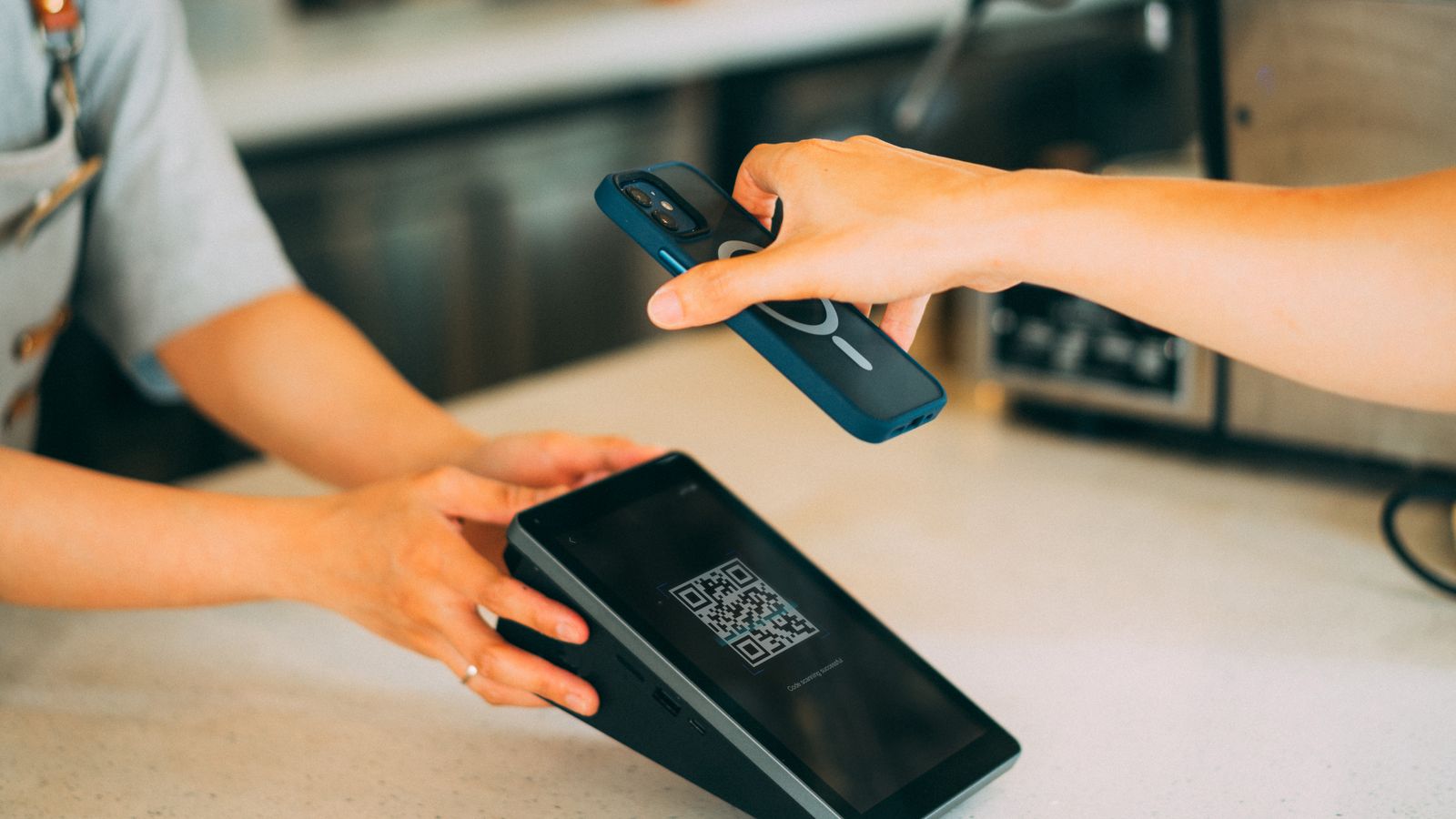
A common example is a payment machine that offers two routes. It might take payment locally and also direct people to a service app. Read the name on the machine and open the known service from a reliable source if the code raises a question. Check the actual site before entering an account identifier or payment information. A browser's secure connection indicator can tell you something about the connection to the site, but it does not establish that the site serves the organization named on the sign.
At a restaurant, ask whether staff can supply the menu address if a shortened code points somewhere unclear. At an event, compare the code with the official organizer's site or the printed ticket. For passenger information at a station, look for the same details on the operator's direct channel. These choices take little extra effort when the purpose is simply to read a menu, timetable or map. They also give you a useful fallback when the phone cannot scan the code.
Pause again when the page asks for more than you expected
Opening a web page is one interaction. Giving that page permission to send notifications, use a camera or download software involves additional decisions. Think about what you came for. A catalog might need to show you a list of items. If it asks you to install an unrelated program or enter sign-in details, get the result from a route you know. A familiar login page design can be copied, so use the address and the service's known process rather than relying on familiar colors or an image.
Suppose a note on a delivery door claims you missed a parcel and offers a code for rescheduling. You can check the courier's normal site or application using tracking information you already have. If you bought something recently, use the order page that started the shipment. Keep the note as context for asking the courier if necessary, and leave payment or account decisions to the channel you have already verified. A request for urgent action often makes it harder to take this short pause.
If you entered information into something you now think is suspicious, go directly to the affected service or card provider using a verified address and follow its support instructions. Changes such as password reset or transaction review belong on that verified channel. Take notes about what happened without forwarding secrets or publishing a screenshot that contains payment or account data. If it happened on a managed device, notify the organization through its usual process.
Use codes carefully when they connect devices or networks
A network code may save you from typing an access point name and password. When it comes from a trusted source, confirm that the device proposes the network you intend to use. A home guest network can have a printed code of its own. A venue might use an approach that asks participants to visit a named portal. These are different experiences. Watch for an unexpected network or extra permission on a device you expect to keep on a different connection.
Some apps use a code to associate a browser session with a phone or to move a sign-in between devices. Start in the official service and confirm the computer and account you intended to pair. A phone dialog can show an account or action you didn't request. Back out if it does and use the service's documented procedure. Do not capture and share a sign-in code with someone who says they need it to help you, particularly when you did not start the session.
Children or visitors may use the same camera utility in a shared space. Explain that showing a destination is a useful step even when the same code was scanned yesterday. A code that contains a link can start a visit to something whose content changed after it was printed. A directly printed address or familiar device menu still matters. Practice with a harmless link and a contact card so it is clear how to recognize the two types of prompt.
Print an alternate route when you publish a code
When you make a code for a real sign, write down what you want it to do and where a reader can go without scanning. Include a recognizable destination or short official address beside it. A text label such as “Building entry instructions” explains the benefit better than leaving a bare square on an office door. Make it clear when the code is only for a guest network or another narrow purpose. People who use assistive technology or a device without a suitable camera should be able to request the same information.
Test a copy at its actual size with the typical lighting and distance. A screen test at full size may miss the blur of the final print or reflections from a sign holder. Look from a lower viewing height if some users will approach from a seated position. Include clear space around the code and follow the generator's printing guidance. If the sign has many decorative elements, keep them clear of the code and choose readable text beside it.
Keep control of the destination over time. An old handout may remain in desks for years, so recheck the link after a site move or service change. If the code goes through a redirect service, understand how the redirect is owned and managed. An expired short link is harder for a visitor to diagnose than an explicit address. Choose a stable page in a domain you control when possible, and renew or replace the sign before an old code becomes the only route.
Test the choice from the side of the person holding the phone
Take a printer proof to the point where someone will actually use it. Ask another person to scan it as if they were arriving for the first time. They should see enough information to understand where it goes before moving on. Have them try the printed alternative as well. A code is most valuable when it removes typing and does not remove the reader's ability to verify the route.
As a reader, keep three simple habits. Notice why the code is there, see what the scanner plans to open, and decide whether the result is suitable for the job. For commonplace tasks you can usually use the offered route once you recognize it. For a request to enter credentials or make a payment, the known route gives you a better chance to verify the request. You can take the convenience of a quick scan and still know where the next action leads.
Plan for a code that cannot be scanned
A glossy sign in a window may be difficult to read in midday sun. A small code placed high up on a wall may be hard to reach with the scanner even when the address is perfectly legitimate. If you publish it, test from the distance and viewing position a visitor can reasonably use. Look at the contrast of the printed mark and confirm the office or service name is readable without scanning.
Provide the short address or phone number appropriate to the information, and check it on the final copy. An address printed beside a code should lead to the same intended information. A short place name or topic can also help visitors find the address via the organization's established site. A second route is useful for a broken camera, a slow connection or simply a person who prefers to make the visit directly.