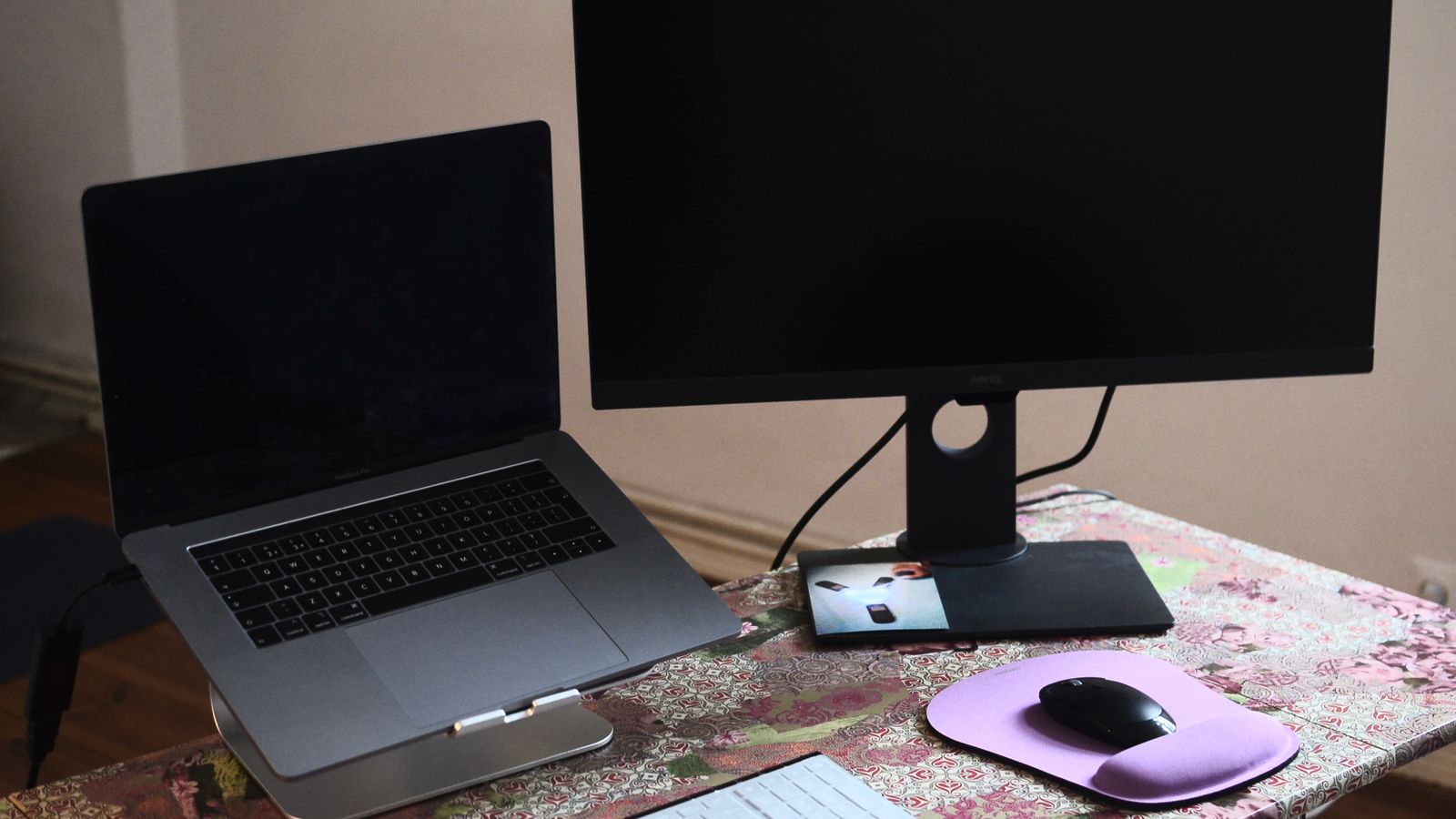
Close the laptop lid without losing your whole desk
Make a docked laptop wake reliably, restore its displays, and keep its charging connection predictable.
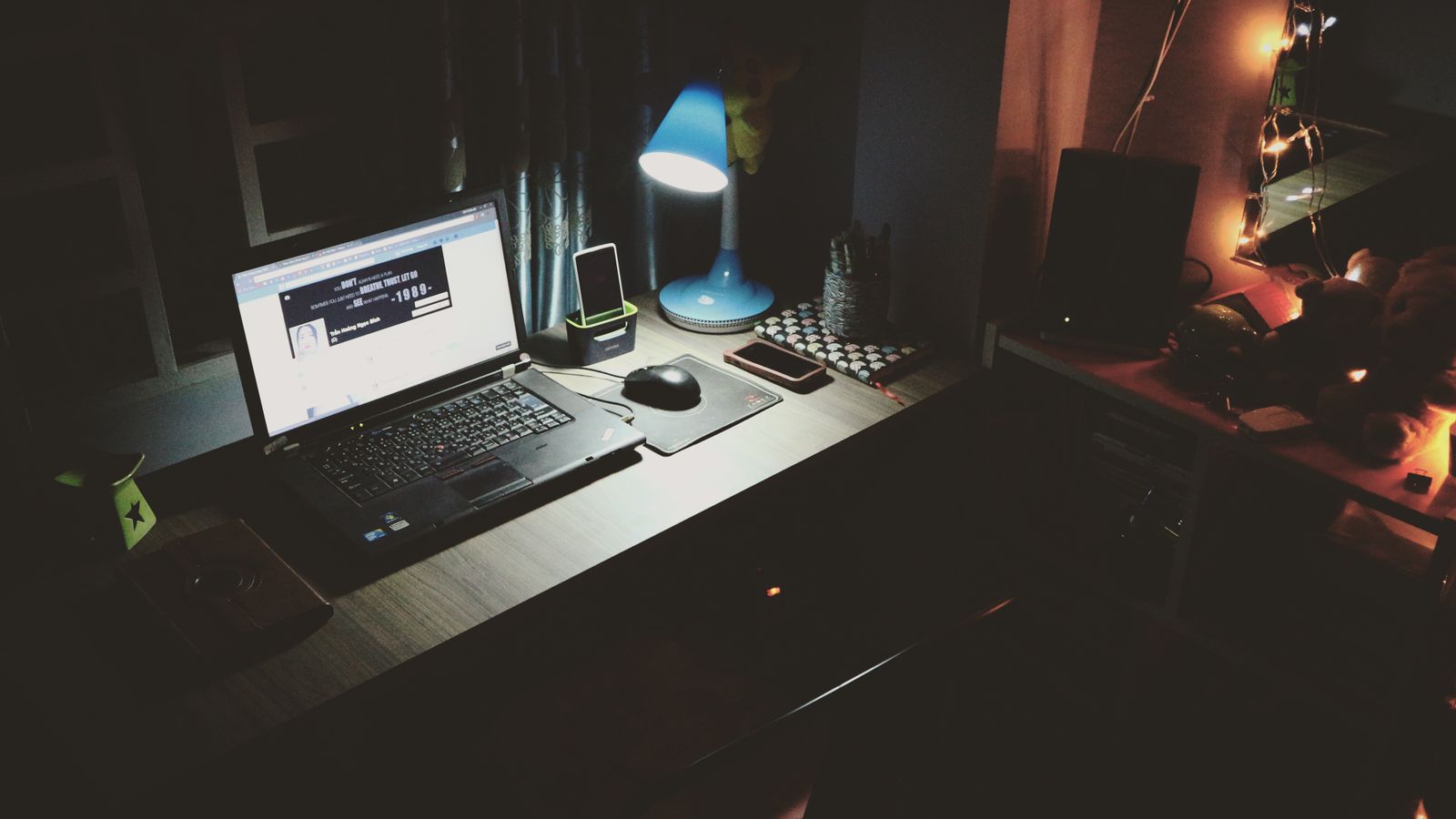
First find a setup that can wake without the dock
A good one-cable desk should survive the things that happen at a real desk. You might take the laptop to another room at lunch, return and connect it while the lid is shut. You might leave a monitor sleeping over the weekend and expect a keyboard tap to bring your work back. A quick test with every device already awake is useful, but it misses those moments. Build the desk around the sequence you need to repeat.
Start with the laptop open. If the computer and monitor can connect directly, use one documented video port and one cable known to work for that purpose. Pick the monitor input yourself so the screen doesn't spend the test looking for a connection on its other ports. Set a resolution and refresh rate supported along the whole connection. An ordinary display mode is a useful place to begin because a marginal connection can fail only at more demanding settings. Wake the laptop from a short sleep and see whether the screen returns.
Write down what you used. “Left port nearest the hinge, short marked cable, monitor HDMI 1” is a better note than “usual cable.” Connect the laptop's ordinary power supply if needed for this baseline. If the direct setup fails, work on that connection first. You can still use a dock with a laptop that has no suitable direct monitor output, but verify the laptop's supported video modes in its manual and start with a single known-compatible display path through the dock.
Add the dock in a fixed order
Connect the dock's own power supply if it uses one. Plug the original or manufacturer-specified host cable into the socket that actually connects to the laptop. Docks with multiple ports that look alike can have only one host connection. Connect one screen and a basic input device. Note whether the laptop says it is charging, whether its display settings recognize the monitor and whether the keyboard or mouse works. Those observations give you three separate signals to follow later.
There are several ways a single plug can carry video, and the laptop, dock, cable and display adapter have to support the same path. In a basic USB-C setup, a device manual may describe DisplayPort Alt Mode. A Thunderbolt or USB4 setup may have different requirements. Some docks use a driver to send display data over USB. Docks of the same physical size can therefore have very different behavior. Use the compatibility information for your exact laptop, operating system and dock before changing drivers or ordering another adapter. A dock saying it can drive two displays does not establish that your laptop can run two independent displays through it.
Keep microphones, external drives and other peripherals disconnected for the first wake test. If the proposed setup works, add one item at a time. An external drive should be ejected according to the operating system's instructions before you unplug the host cable. Don't give a reliable daily wake-up test a reason to end with a corrupted transfer.
Rehearse the four transitions you will live with
Try a cold start with the laptop open and the dock attached. Then try a short sleep with the same setup. A third useful case is returning from another room: put the laptop to sleep, disconnect it, wait for the display and dock to settle, and reconnect as you normally would. Fourth, test the longest period you commonly leave the machine alone. A short sleep and an overnight idle can end in different power states.
If you intend to use the computer with its lid shut, read the maker's requirements for that mode. Depending on hardware and settings, it may need external power and a supported keyboard or mouse. On some systems the lid setting is tied to whether the laptop is plugged in. Other computers have limited support for waking from certain devices or power states. The difference between waking from sleep and starting a fully shut-down machine matters here. A keyboard that can do one can't necessarily do the other.
Record which stage fails and how often. Try a few cycles before treating a success as repeatable. If switching inputs or reopening the lid restores the screen every time, record that action too. A bright power indicator at the dock is a clue, but it only tells you about that indicator. A laptop that responds to a key press while an external screen remains dark has a different problem from a system that is still asleep. Listen for audio or use the built-in display to confirm the difference where convenient.
Follow the first missing signal
Suppose the laptop shows that it is charging and responds to input, but the monitor says it has no signal. Read which input the monitor selected, then look in the laptop's display controls with the lid open. If the computer detects the monitor, check the selected mode and whether the desktop is extended or mirrored. If it doesn't, reseat the ordinary display connection after ending active transfers. Return to the direct connection and the same screen before testing another cable or output. Keeping the monitor and settings steady makes a change easier to interpret.
If the picture returns but the keyboard doesn't, test a wired mouse or keyboard in the laptop directly when practical. A wireless keyboard can have a separate receiver, battery or Bluetooth delay. If a wired device works directly but stops waking the machine through the dock, check the platform's wake support and the dock's documentation. A device can work after the computer wakes while still being unable to signal a wake on its own.
If power is absent or a battery level falls under ordinary load, check whether the dock's included supply is connected and how much power the dock can deliver to that specific laptop. What a power brick can provide and what a host receives are separate figures. The laptop may require its own charger for higher loads. If the laptop reports charging with a direct adapter and gives an insufficient-power message through the dock, capture the exact wording. It may be enough to determine that keeping two cables is more practical.
See what changes when the second display arrives
Consider a desk with a large main screen, an older vertical screen and a laptop that goes to meetings every day. Both exterior displays work immediately after connection, yet the vertical one sometimes remains asleep after a meeting. First write down whether the laptop still recognizes the vertical panel when the failure occurs. Next, try the old panel by itself through its existing connection. If it works alone but becomes uncertain after the main screen is added, compare the tested resolutions, refresh settings and display count with what the laptop and dock support together.
Choose one change for each check. For example, return the main monitor to a common refresh mode and leave the other monitor alone. Check a few detach and reconnect cycles. If the behavior changes, restore the old setting once to look for the same failure. You may find that using a more modest mode on the work screen gives you the stable second screen you care about. You may also find the issue follows an old display cable or a monitor input setting even when the second display is moved. Both results tell you where to spend time.
If the reliable configuration drives the main monitor directly from the laptop, use that. It gives you a known recovery path and avoids tying every job to the same small piece of hardware. Keep the second monitor at a supported mode and check whether the desk still meets its purpose when either machine is away.
Leave the desk in a state you can recognize
Use the setup for a normal day before you fasten cables down. Move the laptop, join a call, return from lunch and put the machine to sleep. If people share the desk, rehearse the switch with both laptops. Keep a small amount of slack around the host cable so it isn't pulled sideways. Label the port at the dock and distinguish the display cable from any nearby charging-only cables. Keep the maker's quick-start and support information where you can find it if you change hardware later.
Keep one accessible connection for travel and troubleshooting. A dock buried behind a monitor can be hard to reset without moving the screen or straining a cable. Check that you can reach its connectors without disturbing the rest of the desk.
A useful record fits on a short note. Include the primary monitor input, the dock model, the specific host port, the chosen resolution and refresh settings, and what you plug in first when you return. If you perform an update recommended by the device maker, record the firmware or software version before and after. Install firmware using stable power and follow the maker's instructions. Save active work before changing anything that could disconnect a display or storage device.
You can decide the test is done when the turns that matter to you are repeatable. For a hot desk, that could be two laptops switching without losing the main screen. For a home office, it may be returning from lunch with the notebook closed and getting both monitors, normal input and adequate charge. Keep the simplest setup that succeeds under those conditions. The reward is a desk you can leave and return to without remembering what has to be unplugged first.