Frame a webcam shot that reads well on calls
Get a repeatable camera angle and balanced light on a real home desk.
Put the camera where your eyes already go
Open the camera preview in your usual calling app and sit as you would during the middle of a conversation. Keep the chair in reach of your keyboard and mouse, and put any notes on screen. An attractive picture made with the chair scooted backward can be hard to hold during twenty minutes of answering questions. Move the camera up from a low laptop screen if it shows mostly ceiling and the underside of your chin. If a lens on top of a large monitor feels too high, check the position of a wide call window and consider mounting the camera a little lower or using a separate support beside the display.
Put the person you spend the most time listening to close to the lens on the screen. This makes the eye movement smaller when you look between someone's face and the camera. On an interview, try keeping the conversation window and the line of notes you refer to together in the same part of the display. If the laptop sits on a riser, use a stable support and place the keyboard at a comfortable height. With a movable camera, check whether a clip fits the monitor housing well and keeps its grip when you adjust the screen. Mark the normal chair location before making more changes. The rest of the setup depends on where you will actually be sitting.
Leave room around the face and whatever you show
In the preview, aim for a little space above the head and enough of the shoulders to show your posture. Sit up briefly and see if your hair hits the top of the picture. Lean forward to make a point and check where your face lands. If you use your hands, make the kind of gesture that belongs in a live call. A compact composition can work for two people talking, while a short demonstration of a notebook or object may need more room at the side. Move the camera back a little if a short arm movement repeatedly leaves the picture. A wide lens placed close to the face can also emphasize the nearest features, so give distance a try before cropping the image tighter.
Look at the frame in the app you will actually use. A self-view panel can show a mirror image or a differently shaped preview than someone else sees. Group layouts may trim the edges, especially when a participant has a small tile. Ask a colleague to describe a private test call or capture an image from the receiving view with permission. Check whether both the face and the item you are holding remain visible. A line of text looks reversed in a mirror preview on some apps, while the other caller may see the ordinary orientation. Use a scrap with a few large letters if reading text on camera will matter.
Move the broad light before increasing exposure
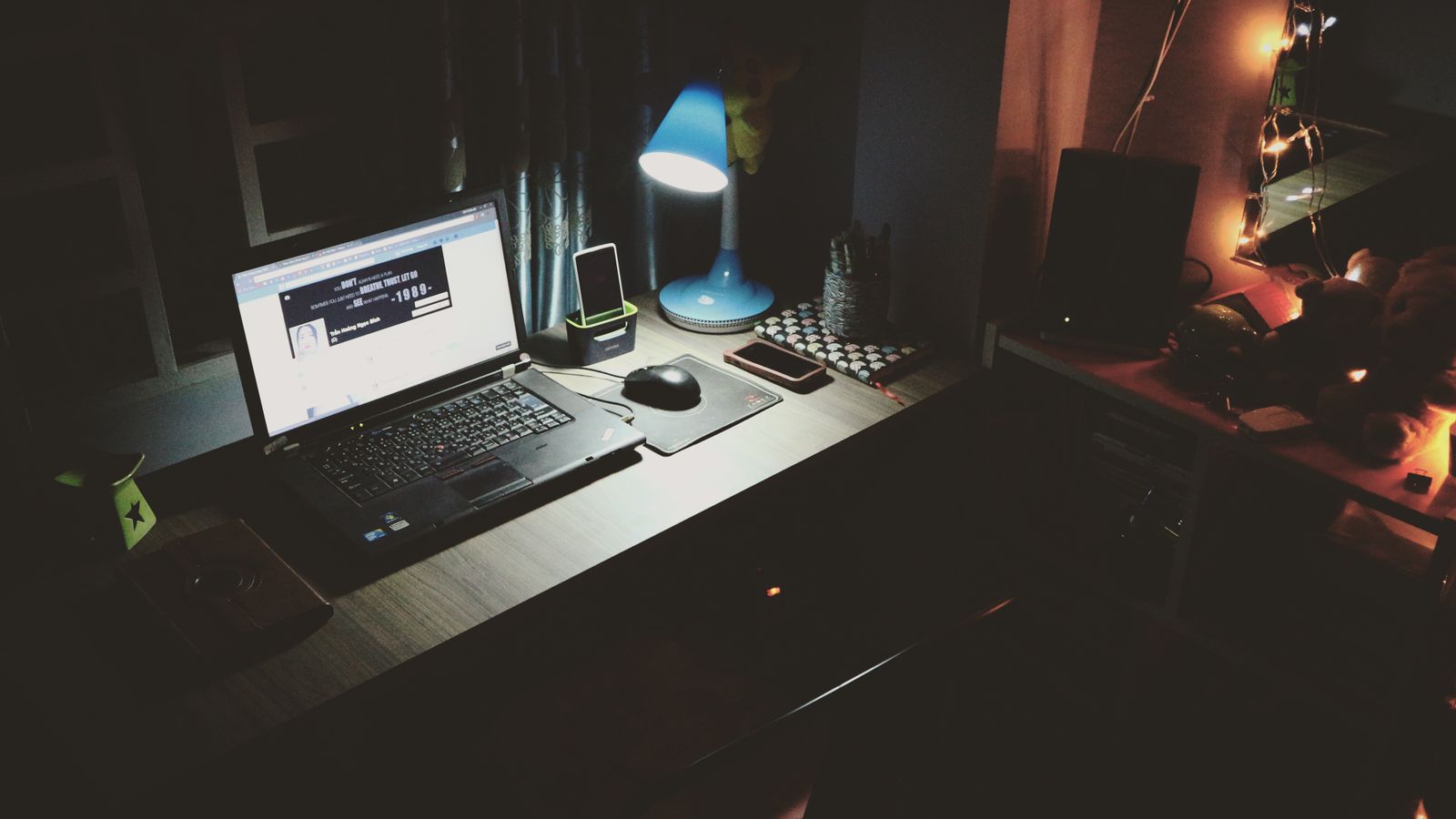
For an ordinary desk, a large window in front or off to one side can give gentle light across a face. A lamp with a broad shade can serve the same purpose later in the day. Watch the preview as you move a light source from behind the screen to one side of it. A bright bulb at close range can create a hard-edged shadow, while a larger lit area can give the camera more gradual changes to capture. With glasses on, shift the source up or sideways a little and check whether a bright rectangle crosses the lenses. The viewer should still be able to see your eyes when you look toward the person's image.
A background window can make the camera reduce its exposure until the face looks flat or dark. Close a shade partway, rotate the desk or camera, or add broad light from the front and test each change while the window is bright. Consider a desk that faces into the room with a window behind the chair. It might look fine at nine, then get an afternoon patch of sun that changes the picture dramatically. Make a second preview when that light usually appears. Choose a shade height or chair angle that works during the call, and leave a simple note about it if different rooms or times require a different setup.
Give automatic adjustments a practical test
A camera or app may adjust brightness, color or framing as it sees changes. Start a preview with the setting you normally use, hold still for a moment, and then lean toward a second screen. Check whether the picture settles or continues changing. If a window takes up a big portion of the frame, automatic exposure can respond as you shift and uncover it. A light desk lamp may let it hold a steadier image. If you use both daylight and a warm lamp, look at a plain white sheet near your face and see whether skin and objects shift between strong blue and orange tones as you move. Simplifying the light sources can make the color easier for the camera to handle.
An app may offer low-light correction, portrait lighting or a manual webcam control panel. Compare the same scene with the setting available on your device. Ask whether the image preserves detail in your eyes, hair and glasses when you turn. If the brighter picture adds grain or makes movements smear, try increasing room light and repeat. Avoid relying on the exact controls shown in another person's screenshot. Different versions, cameras and account settings can expose different choices. Keep a short note with the camera's name and whichever settings changed the result. When an update changes the menu, your note still identifies the behavior to look for.
Check the edges while sitting at the desk
A webcam moved a few inches can reveal part of a doorway, the next person's desk or a piece of wall where private notes are pinned. Scan all four edges of the preview. Lean forward and back, and watch what a wide view reveals around your chair. Readable labels and background details matter even when the room looks tidy. A small adjustment that keeps the face central may let the wall block a moving hallway. If you join at a kitchen table, check what happens when someone opens the door of a bright room behind you. The door can both add visual activity and alter the exposure.
Background blur and virtual scenes are useful in some rooms. Test them with the headset you normally wear, with your shoulders moving and with a hand raised briefly near your face. Watch for edges of the headset, hair or paper disappearing. If the call involves showing an object, test that object especially close to the area where you normally hold it. A simple background you can control is often easier for the software to render. If a screen share presents the important material, try that feature in a private test as well. This lets the camera keep a comfortable frame for conversation while text and details stay readable in a separate view.
Keep the settings tied to the correct camera
A docked computer can show a built-in camera, a USB webcam and a virtual camera from another program in the same list. In the calling app, select the named camera you intended and confirm it in the preview. If the image suddenly looks lower or appears to show another room angle, inspect the input setting before changing the mount. A camera that works in a system test may need permission in the calling app or browser as well. Give access to the program or meeting site you intend to use and check your device controls if the permission prompt never appears. Close programs that may be using the same camera while you test it.
If you prefer a physical privacy control, use the compatible shutter already on the device or disconnect an external webcam when you are done. The device maker's guidance matters on tightly closing laptops. A thick add-on cover can interfere with how the screen closes. Verify the state in the preview before the next call. If an external camera is regularly unplugged, label the USB socket with a small mark or secure its loose cable where you can reach it. Put the control in your ordinary pre-call routine so there is time to choose the correct input and open the shutter before a meeting starts.
Reproduce a useful shot from three small marks
Save the position of the monitor or camera stand, the chair's usual location and the shade or lamp setting that handles the strongest change in the room. A removable strip of tape on a stand can mark extension or rotation. A note on the desk can say which shelf the lamp uses in the evening. For a shared workspace, write down two different arrangements if people sit at different heights. The purpose is to restore a workable setup in a minute after someone moves the screen to read or uses the desk for a different task.
Try one complete rehearsal at the time of your usual meeting. Join a private preview, look at the caller area, read a sentence from the notes, and turn to the side as you would when checking a second screen. Move a hand through the frame if you often show things. The center area of the image should carry the face and essential gestures. Make sure the selected camera is still right after undocking or reconnecting. If the small picture stays clear during those ordinary movements and you can sit in your usual position, the setup will take little attention once the real conversation starts.